Opens via:
- Civil Explorer panel > Settings tab > context menu of a Shape Style > Create option
- Calculate Section Volumes dialog box > Material style option > Browse button (
 )
)
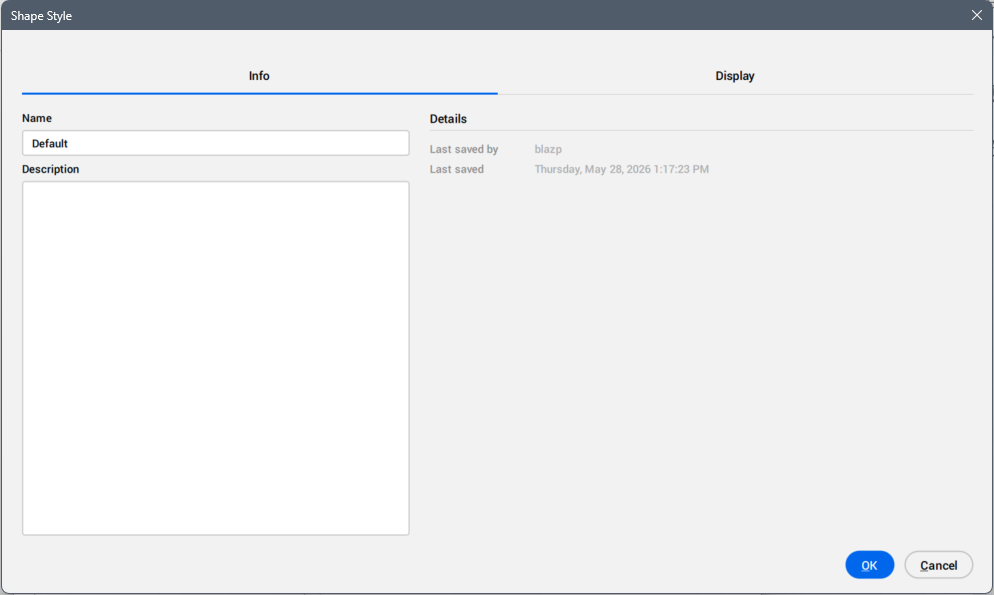
The Shape Style dialog box allows you to define how the earthwork and structural materials are displayed in a drawing.
Info tab
Displays information about the shape style.
- Name
- Sets and displays the material style name.
- Description
- Sets and displays the description of the material style.
- Details
- Displays the Last saved by and Last saved dates.
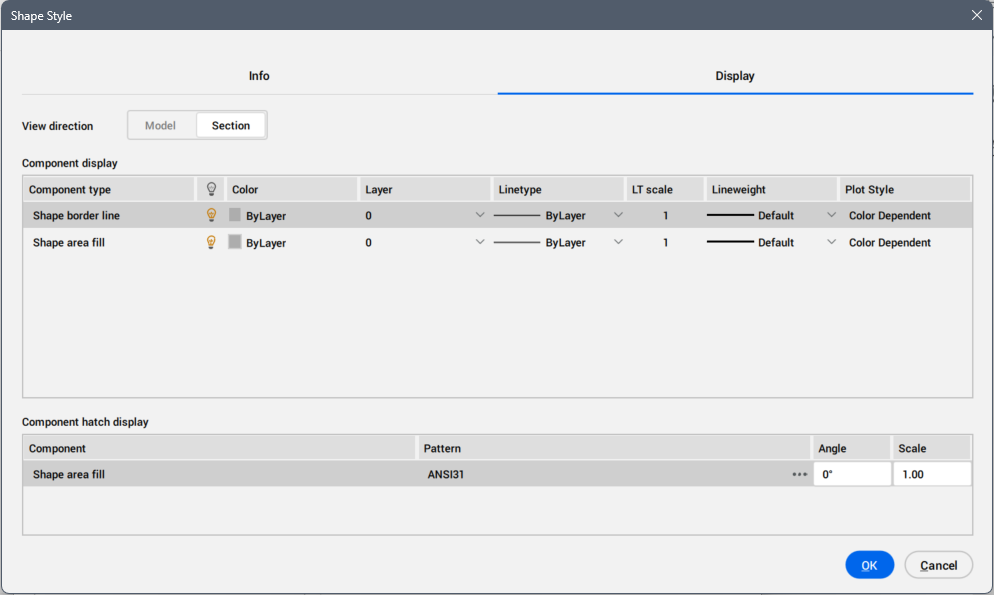
Display tab
Defines general shape style settings.
- View direction
- Specifies for which view direction the display characteristics are modified. Two options are available:
- Component display
- Lists shape style components with assigned visibility and layer.
-
- Component Type
- Displays the component types.
-
- Visible
-
Displays the component visibility. Click the light icon to change the visibility.
- Color
-
Displays a color for the component. To change the color, click the field and select a new color in the Color dialog box.
- Layer
-
Displays the layer for components. Choose another one from the drop-down list of available layers.
- Linetype
- Displays the linetype for the component. Choose another one from the drop-down list or the Load... option to open the Load Linetypes dialog box.
- LT scale
- Displays the linetype scale for the component. Click the field to edit.
- Lineweight
- Displays the lineweight for the component. Choose another one from the drop-down list.
- Plot Style
- Displays the plot style used for the component.
- Component hatch display
- Lists the hatch component characteristics.
-
- Component
- Displays the component name.
-
- Pattern
- Displays the hatch pattern. Click the right-side dots to open the Hatch Pattern Palette dialog box to choose another hatch pattern.
-
- Angle
- Sets or displays the hatch angle.
-
- Scale
- Sets or displays the hatch scale.