
BricsCAD Assist panel
To open the BricsCAD Assist panel, right-click a ribbon panel or toolbar and choose BricsCAD Assist from the Panels list. By default, the panel is displayed on the left side of the screen.
The BricsCAD Assist panel offers access to relevant documentation, practical how-to tips, and helpful guidance.
Log In
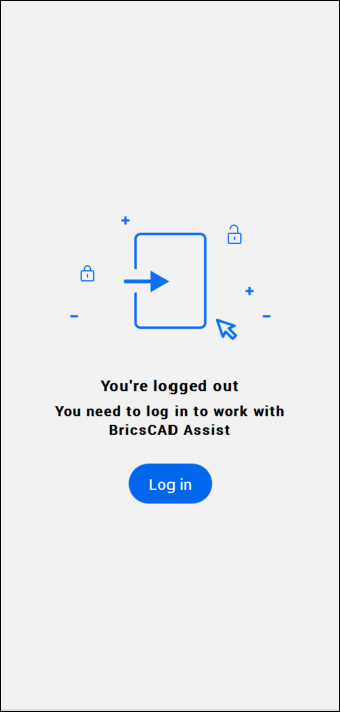
Click the Log in button to open the Bricsys website, allowing you to log in to your Bricsys account. For more information on how to log in, see the Log in with your Bricsys account article.
The panel only displays introductory information after you log in for the first time:
- Click Acknowledge and Continue to open the BricsCAD Assist panel content.
- Click Review data collection settings... to open the BricsCAD Analytics Program dialog box. For more information, see the BricsCAD Analytics Program article.
Click Acknowledge and Continue to open the BricsCAD Assist panel content.
Click Review data collection settings... to open the BricsCAD Analytics Program dialog box. For more information, see the BricsCAD Analytics Program article.
The BricsCAD Assist panel content
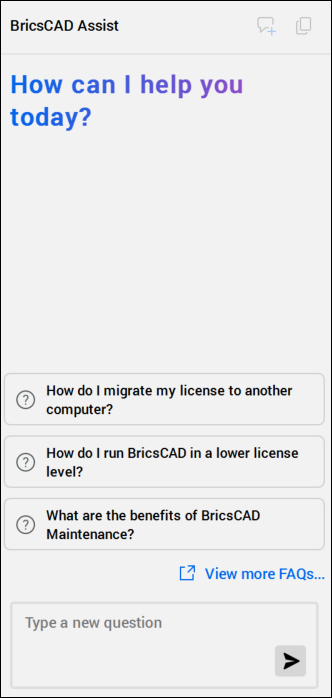
The BricsCAD Assist panel displays the area for current conversation.
To begin a conversation, select a suggested prompt or enter your question in the Type a new question section and click Send....
- To view additional frequently asked questions, click View more FAQs... to access the Knowledge Base articles in the Bricsys Help Center.
- After you receive an answer, click Show Sources to list links to relevant Bricsys Help Center articles.