
ADDVERTICALALIGNMENTVIEWLABELS command
Adds station and elevation labels or depth labels to a vertical alignment view.

Icon: 
Method
The command opens the Add Labels dialog box with the Vertical Alignment View label selected.
This dialog box is modeless, so you can continue working in the drawing while it is open.
Select the Label type and Label style.
Click the Add button or press Enter. The dialog box closes.
Select the vertical alignment view to add labels to. Click to place labels.
Press Enter or Esc to display the dialog box.
Click the Close button or press Esc to end the command.
Note: The added labels have two grips. One moves the label along the segment, and the other drags it away from the segment.
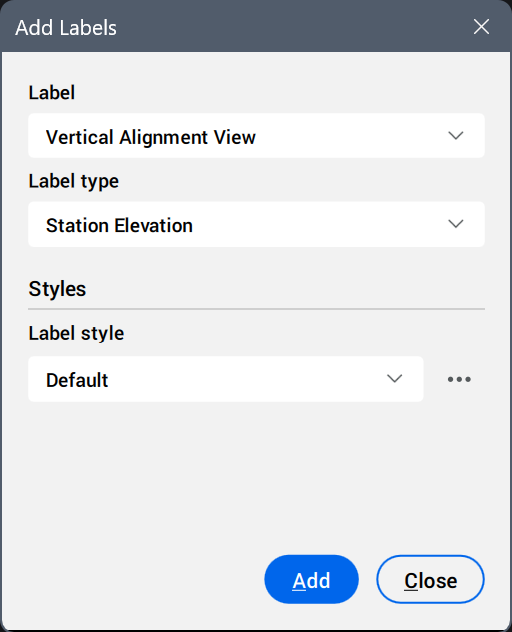
- Label
- Displays the preselected label, according to the command used.
- Label type
- Sets the label type.
- Station Elevation
- Adds station elevation labels using the selected label style.
- Depth
- Adds depth labels using the selected label style.
- Styles
- Sets the label style and/or symbol style.
Click the Select style... button (
 ) to display the available styles in the Select Style dialog box.Tip: To edit styles or create new ones, click the Edit style... or Copy style... button next to a style in the Select Style dialog box. This opens the Label Style Editor dialog box.
Options within the command
- Switch vertical alignment view
- Clears the current selection and allows another vertical alignment view to be selected.