
Editing alignments
Overview
Several alignment editing options are available in BricsCAD Civil, using the ALIGNMENTEDIT command:
- Continue a horizontal or vertical alignment;
- Add or delete Pi/Pvi points;
- Delete elements;
- Add or remove Station equations;
Note: The 3D alignment is updated automatically.
Also, use the ALIGNMENTVERTICALMANAGE command to add a surface to a vertical alignment view.
Continuing a horizontal alignment with ALIGNMENTEDIT
- Draw a horizontal alignment following the steps from the Create alignments article, Creating an alignment by PI.
- Type ALIGNMENTEDIT in the Command line.
- Select the horizontal alignment you want to edit.
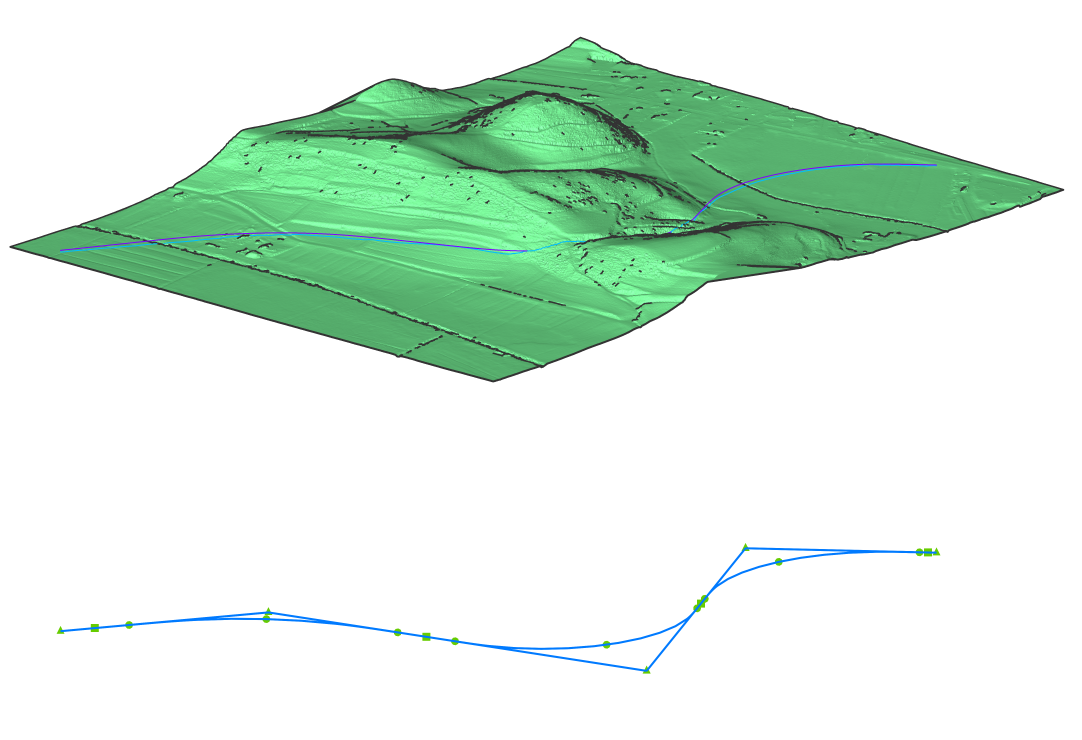
- Select the option Continue with Pi in the Command line.
- Pick new horizontal alignment PI points to continue your existing alignment.
- Use the Undo option in the Command line to return to the previous step.
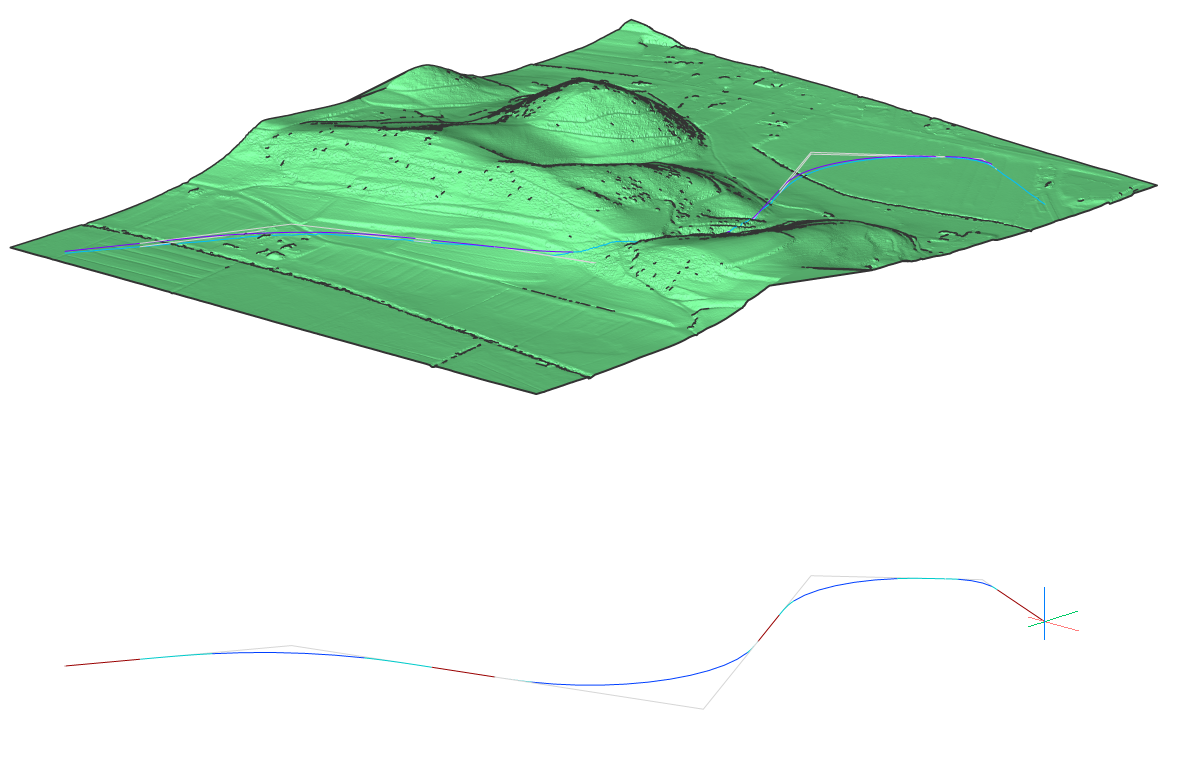
- Press enter when finished. In doing so, the horizontal alignment is extended accordingly, and the 3D alignment is updated automatically.
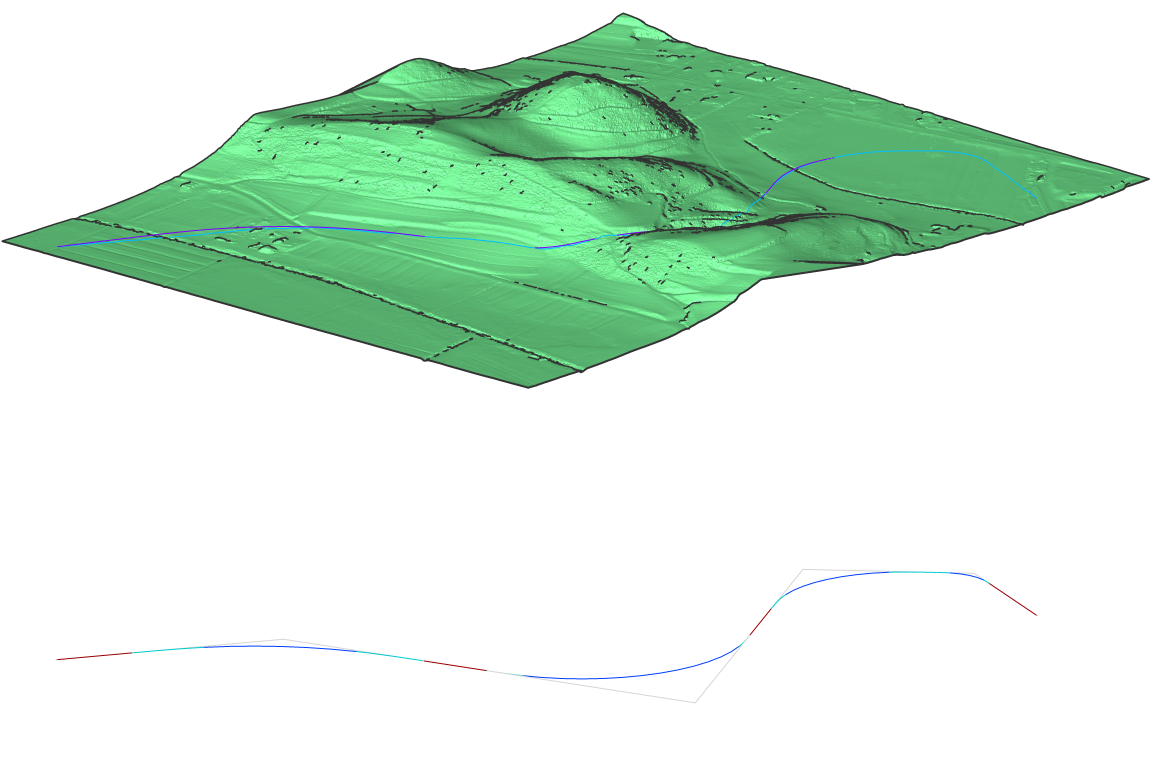
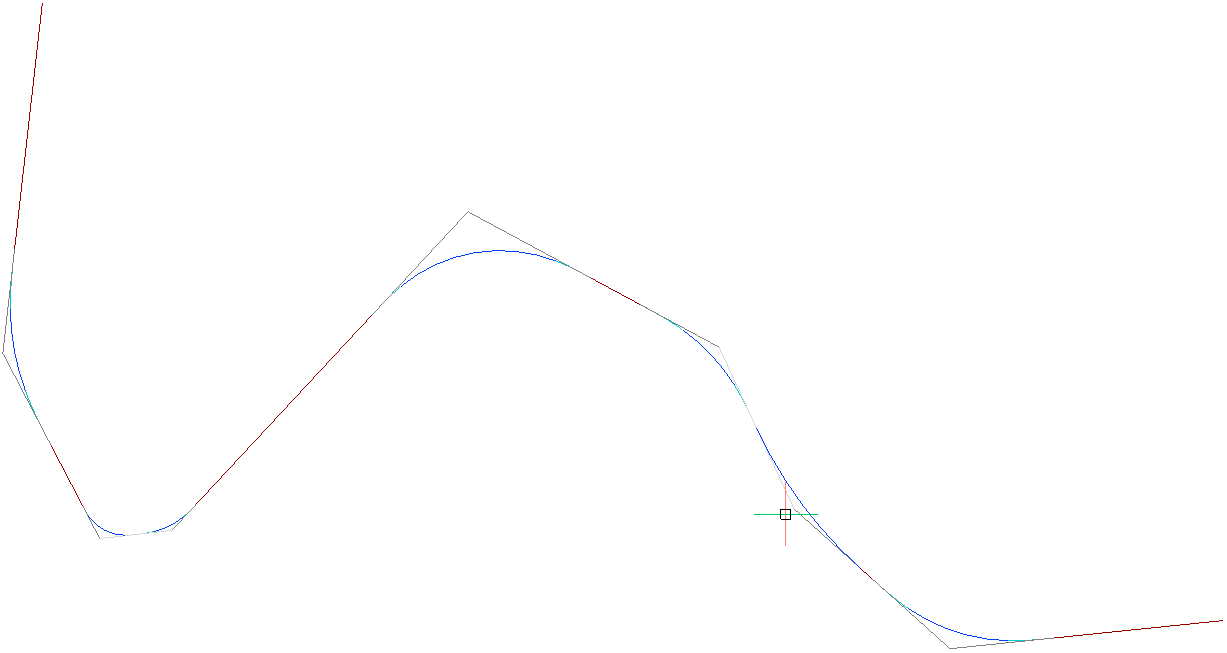
Adding PI to an existing horizontal alignment
- Type ALIGNMENTEDIT in the Command line.
- Select the horizontal alignment you want to edit.
- Select the option Add Pi in the Command line.
- Pick point to add new PI.
Before adding PI point
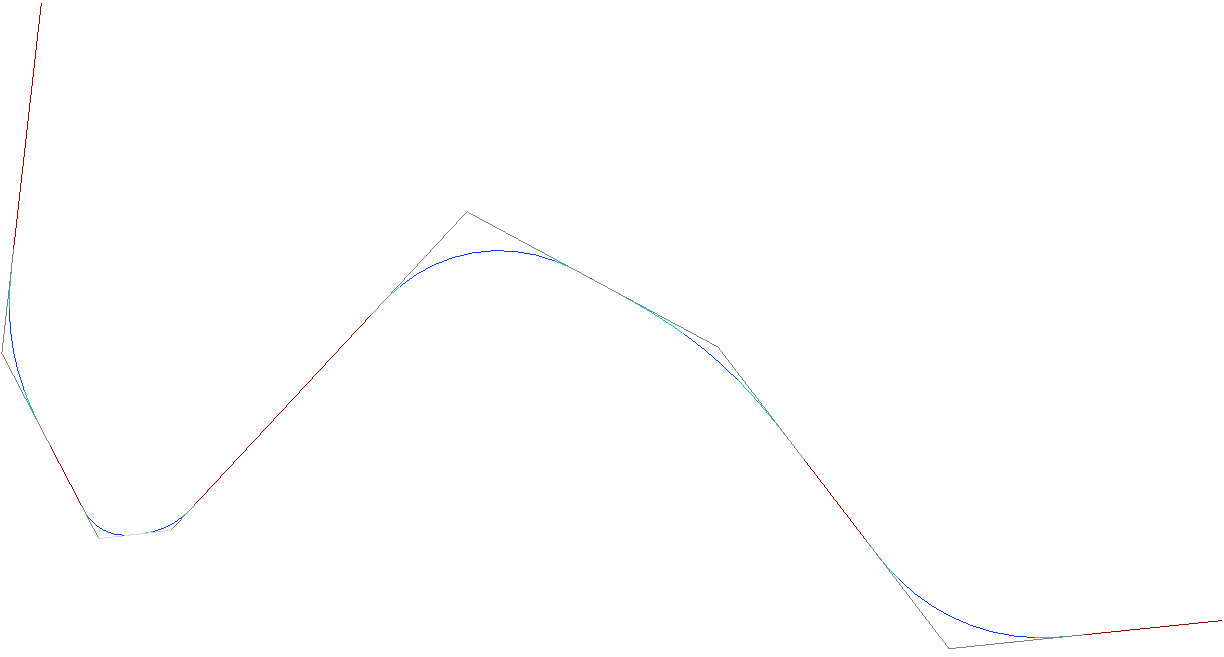
After adding PI point
Removing PI from existing horizontal alignment
- Type ALIGNMENTEDIT in the Command line.
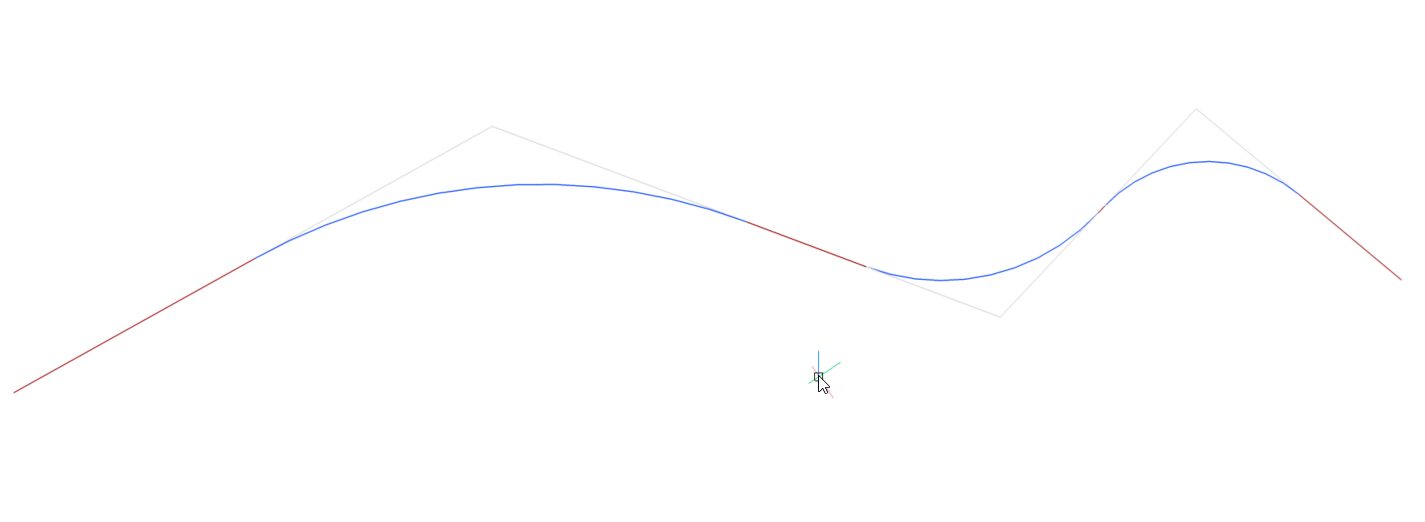
- Select the horizontal alignment you want to edit.
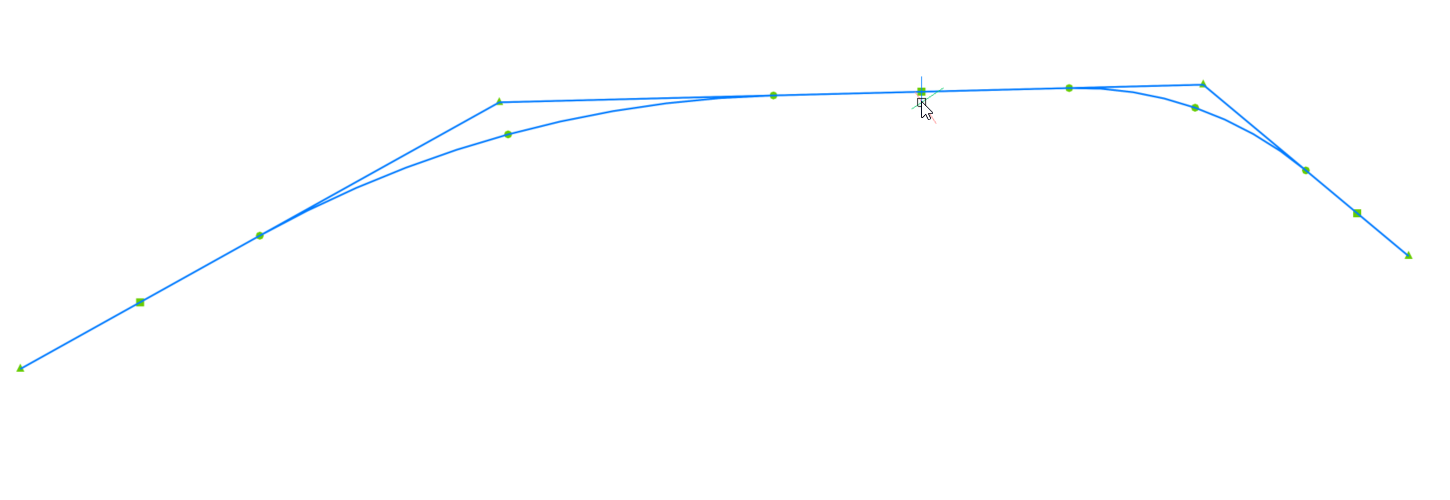
- Select the Remove Pi option in the Command line.
- Pick a point near PI to remove.
Adding a surface to Vertical Alignment View
- Open the drawing file that contains a TIN Surface, alignments, a vertical alignment view, and grading.
- Launch the ALIGNMENTVERTICALMANAGE command in the Command line.
- The Select Alignment dialog box opens, allowing you to select a horizontal alignment.Note: When a horizontal alignment is already selected in the drawing, the Select Alignment dialog box does not open.
- Then, the Manage Vertical Alignments dialog box opens.
- Click the Add surface vertical alignment button to open the Add Surface Vertical Alignment dialog box. Select a surface from the list or from the drawing area, such as a grading.
- Then click the Add button.
- The Manage Vertical Alignments dialog box reopens.
- The grading surface is added to the surfaces list and appears in the vertical alignment view.
Edit Alignments through the Properties panel
You can edit the alignment parameters through the Properties panel.
- Edit Vertical Alignment
-
- Select a Vertical Alignment.
- In the Properties panel, you can see that the Vertical Alignment consists of a number of PVIs (1).
- Once click on the PVI field (2), the currently selected PVI is highlighted in the drawing (3).
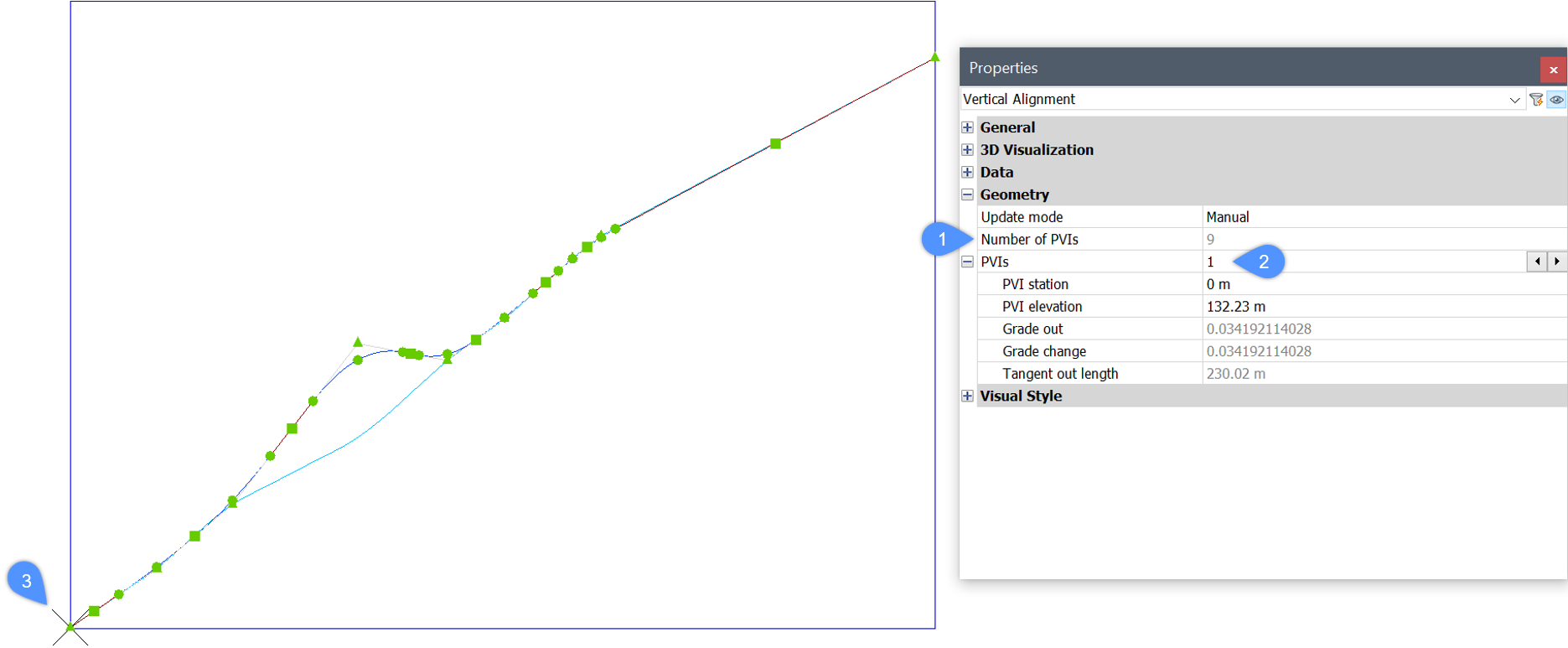
- You can switch between PVIs and edit the Alignment PVI parameters. The Vertical Alignment will be automatically updated in the drawing.
- Edit Horizontal Alignment
-
- Select a Horizontal Alignment.
- In the Properties panel, you can see that the Horizontal Alignment consists of a number of elements (4).
- Once click on the Element field (5), the currently selected element is highlighted in the drawing (6).
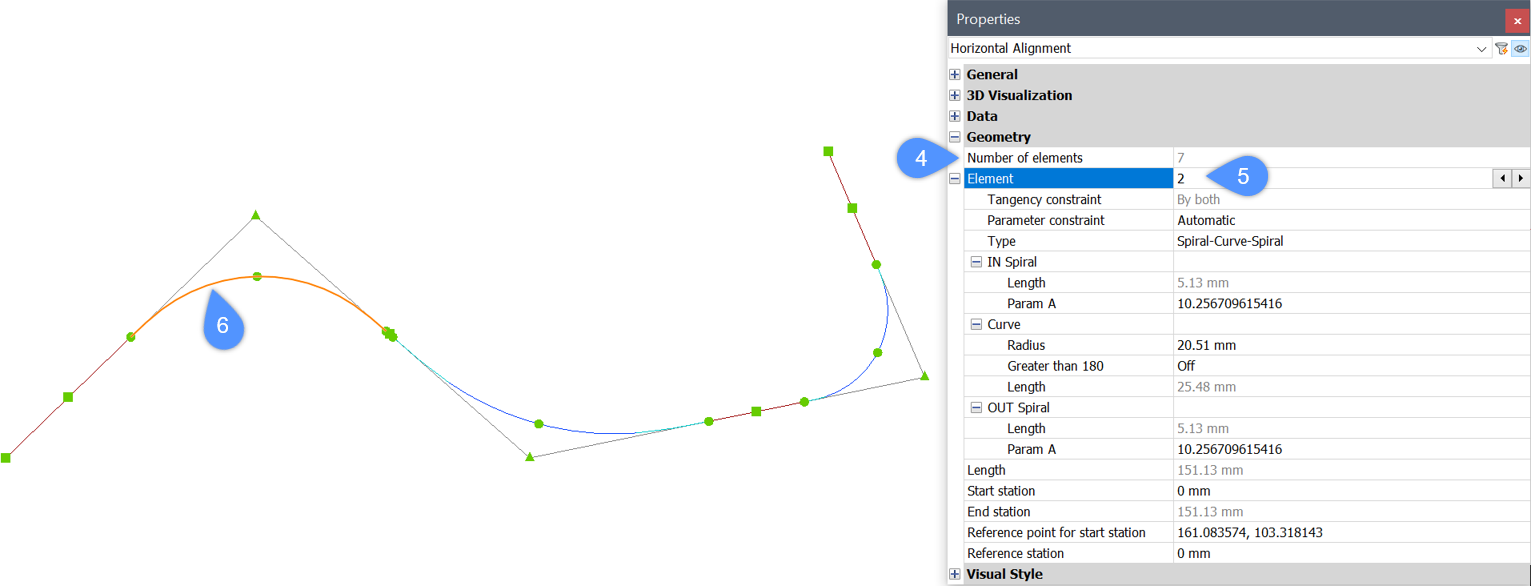
- You can switch between elements and edit the Alignment element parameters. The Horizontal Alignment will be automatically updated in the drawing.
- Edit 3D Alignment
-
- Select a 3D Alignment.
- In the Properties panel, you can edit its Horizontal (7) and Vertical (8) alignment parameters.
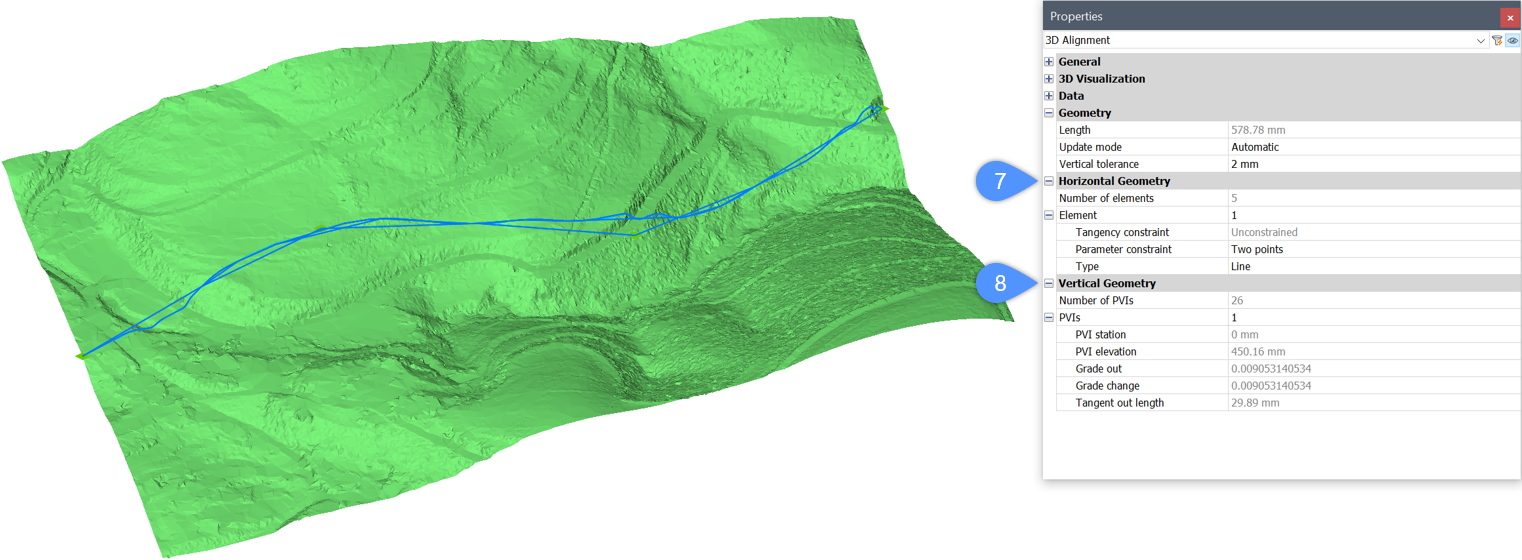
- As described above, you can switch between elements and PVIs and change their parameters. The 3D Alignment will be automatically updated in the drawing.
Working with alignment station equations
The alignment station equation can be set and changed as desired.
- Adding station equation to an existing Horizontal alignment
-
- Type ALIGNMENTEDIT in the Command line.
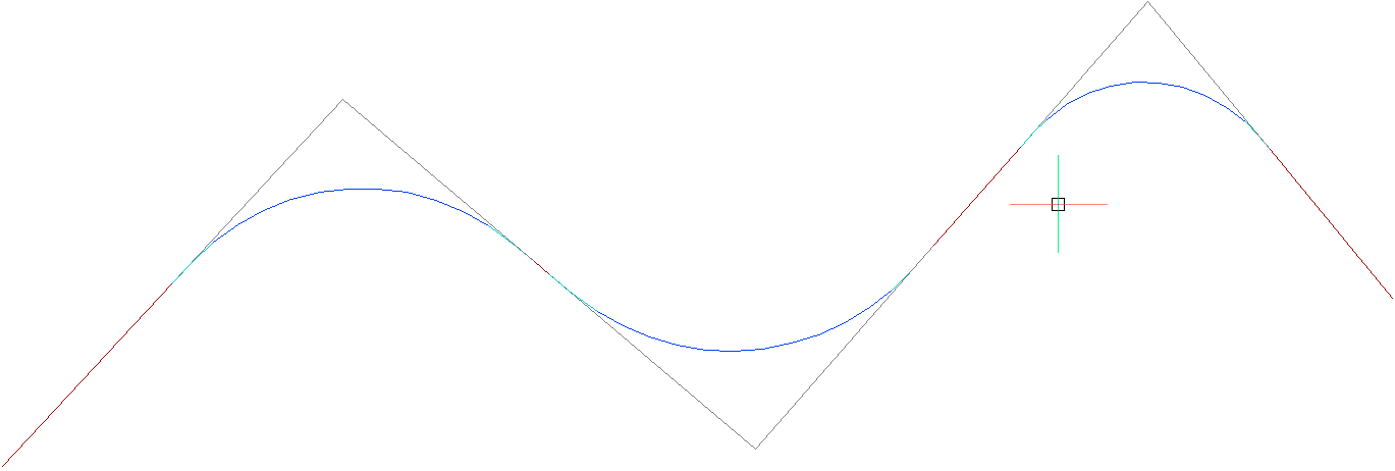
- Select the Horizontal alignment you want to edit.
- Select the Add Station equation option in the Command line.
- Pick point to add new Station equation
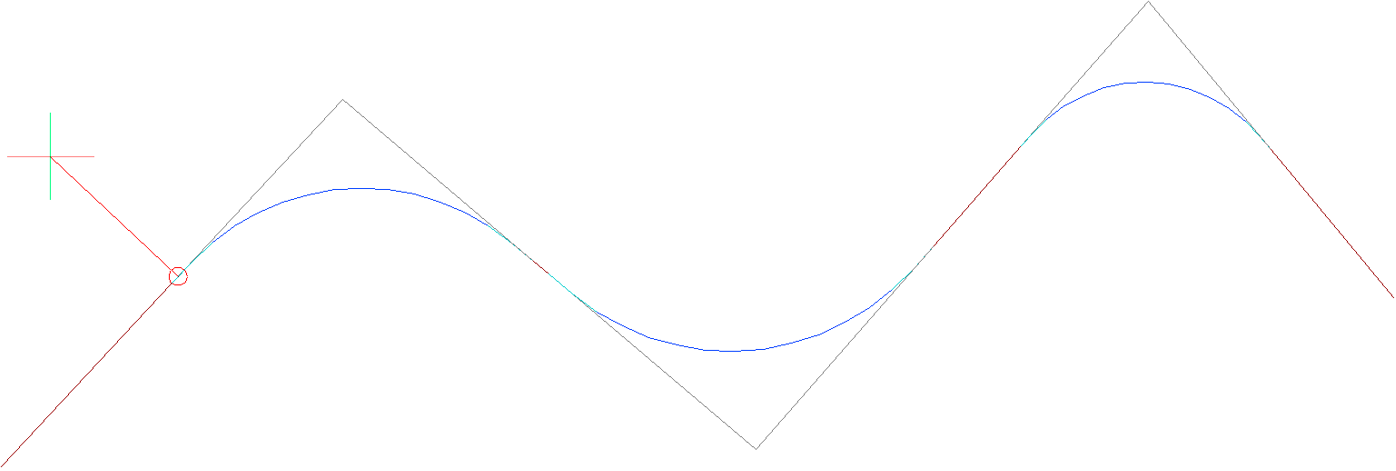
- Type ALIGNMENTEDIT in the Command line.
- Removing station equation from an existing horizontal alignment
-
- Type ALIGNMENTEDIT in the Command line.
- Select the Horizontal alignment you want to edit.
- Specify the index number of station equation you want to remove.
- Type ALIGNMENTEDIT in the Command line.
- Editing station equation parameters through the Properties panel
- You can switch between created Station equations and edit the parameters in the Properties panel.
- Select a Horizontal Alignment.
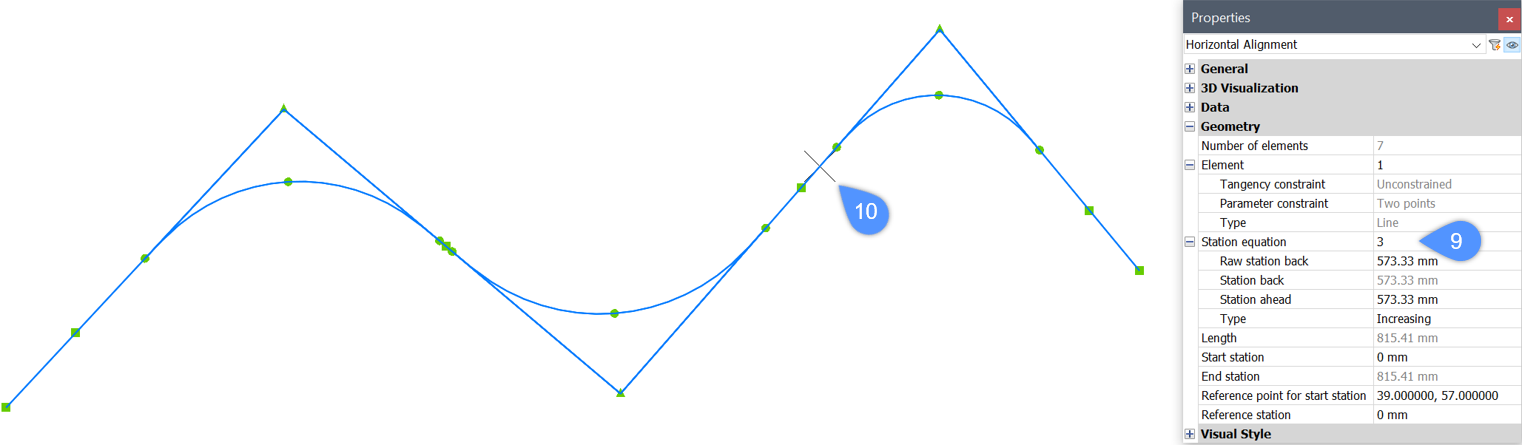
- In the Properties panel, you can see if the Horizontal Alignment have station equations added.
- Once click on the Station equation field (9), the currently selected station equation is highlighted in the drawing (10).
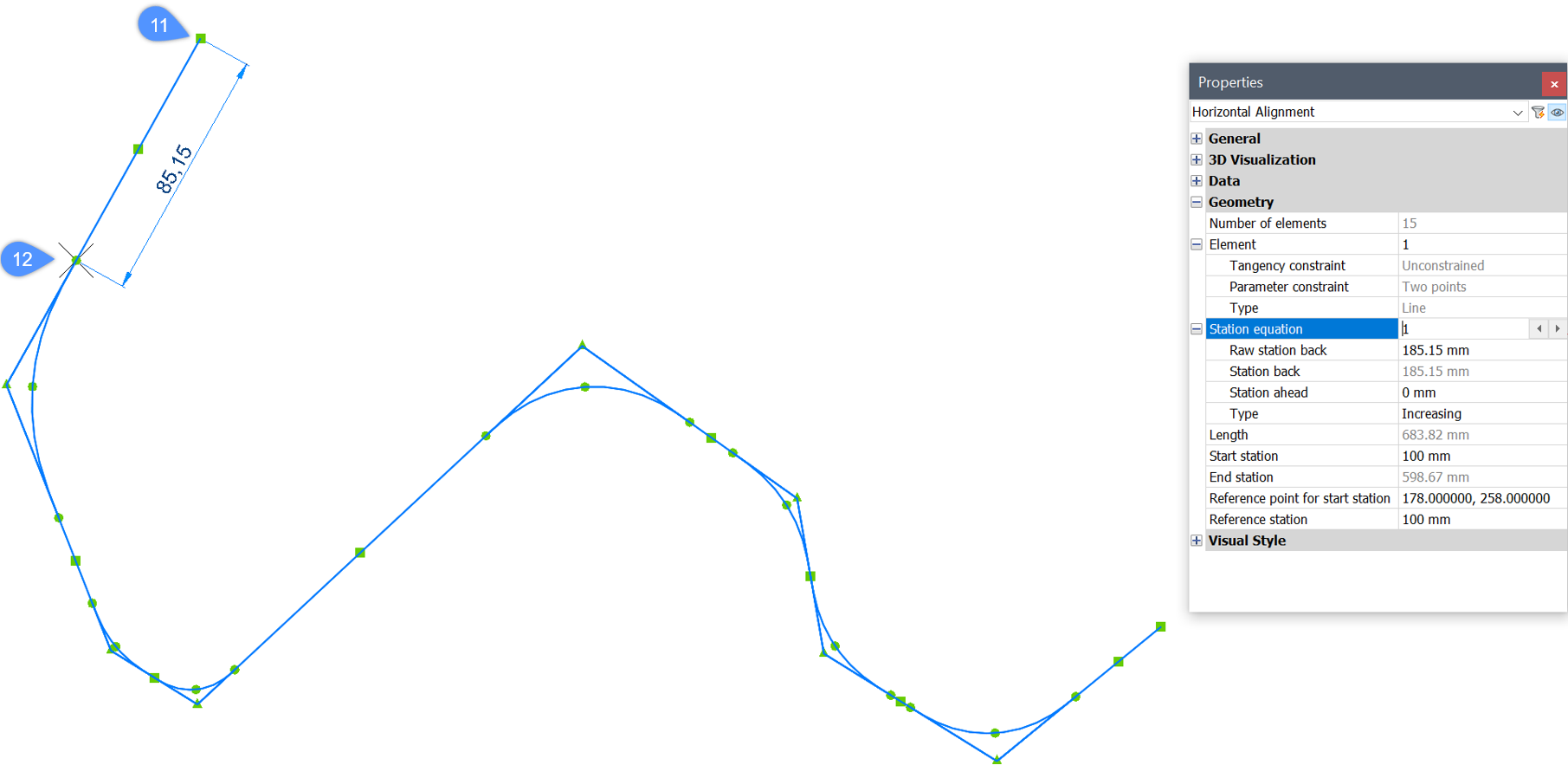
- The Raw station back value is relative to the Alignment start point (11) and the specified point for the Station Equation (12).Note: Start station at the Alignment start point may be different from zero (specified by the user). If only one Station Equation is defined on the Alignment, then Raw station back value matches to Station back value.
Edit the Raw station back parameter in the Horizontal Alignment Properties to move the point for the Station Equation on the Alignment.
- The Station back value of all Station equations, except for the first one, is relative to the Station equation value and the Station ahead value, placed directly before it. If only one Station Equation is defined on the Alignment, then Station back matches to Raw station back.
- The Station Ahead specifies the new station value starting after the new point for the Station Equation location on the Alignment.
- The Type parameter specifies whether the stations increase or decrease after the (point for the) Station Equation location on the Alignment.
- The Raw station back value is relative to the Alignment start point (11) and the specified point for the Station Equation (12).