DWGHEALTH command
Combines the functionality of multiple stand-alone BricsCAD commands that help to improve overall drawing size and accuracy.

Icon: 
Alias: DRAWINGHEALTH
Description
Combines the power of multiple commands (PURGE, AUDIT, FINDOUTLIERS, SOLIDIFY, SIMPLIFY, OVERKILL, BLOCKIFY, OPTIMIZE, ARRAYDETECT) in one location. Reduces drawing size, removes unused styles, entities and layers and improves drawing quality.
You can run the DWGHEALTH command in the Interactive mode.
When you run the command for the first time, a tutorial dialog opens, explaining the DWGHEALTH command in two steps.
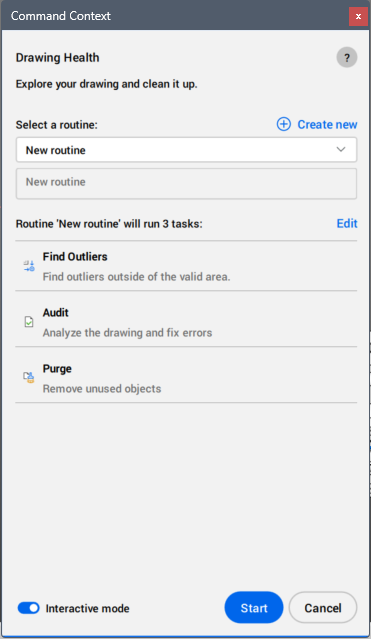
The DWGHEALTH command opens the Drawing Health Command Context panel:
Create new button
Opens the Create Routine dialog box that allows you to add a new routine. See the Create Routine dialog box article.
Select a routine
Allows you to select a routine from the drop-down list of all available routines, predefined and custom.
The predefined routines are:
- Fix errors
- Analyze and repair 2D and 3D entities in your drawing.
- Reduce drawing size
- Reduce drawing size (where applicable) by removing unused objects, duplicate overlapping geometry, and block definitions with identical contents. Properties to be included or filtered can be selected under each task.
- Repair 3D imports
- Clean and repair imported 3D models from non-DWG programs. This routine addresses issues such as geometry errors, converting meshes to solids, and simplifying 3D solids after conversion. The routine may improve performance and reduce file size on large imported 3D solid files.
- Health Advisor
- It is a routine that runs in the background while opening a drawing. This routine cannot be renamed or deleted.
- Manage routines...
- Opens the Manage Routines dialog box. See the Manage Routines dialog box article.
Description of the routine
Displays the description of the routine, defined in the Create Routine dialog box. You can edit it in the Edit Routine dialog box.
Edit button
Opens the Edit Routine dialog box where you can edit the selected routine. See the Edit Routine dialog box article.
List of the tasks included in the routine
Lists all tasks that will run with the selected routine.
Interactive mode
Switches to manual checks and fine-tuning. For each routine task, a panel will open containing the same options as the corresponding commands, where you can fine-tune the cleanup of the drawing.
Start button
Performs the routine.
If the Interactive mode button is active, a panel opens for each routine task. Choose your settings and press the Next button to open the next task panel.
- DWGHEALTH tasks and their corresponding stand-alone commands support zoom functionality, where applicable. 'Applicable' here means that the task has something to zoom to (for example, purge doesn't). Zoom is available either by double-clicking an item or right-clicking it and selecting the Zoom option. In the latter case, the application will zoom to all selected objects, if applicable.
- For the Overkill - duplicate blocks task, when the Overkill operation touches multiple entities, it is only possible to apply the changes to the entire group.
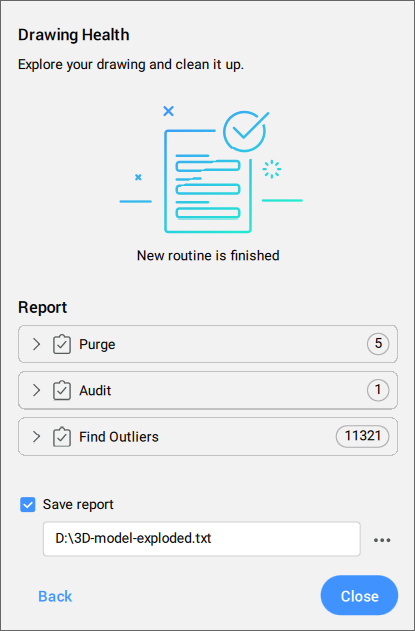
After the last task, it opens the Report on the drawing's cleanup, which displays all items detected and cleaned.