
VIEWBREAKSTYLE command
Opens the Drawing explorer dialog box with the View Break Styles category selected.

Icon: 
Description
Opens the Drawing Explorer dialog box with the View Section Styles category selected to view and modify the styles in the current drawing.
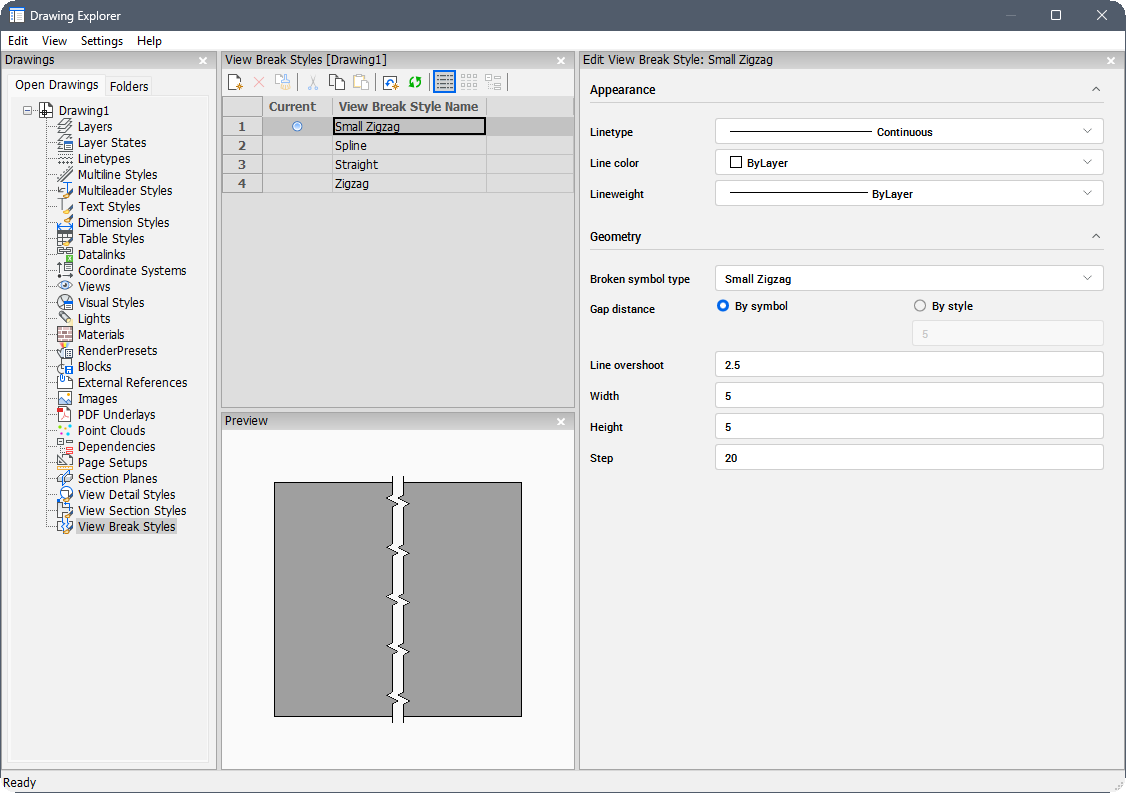
The category contains the following panes:
- View Break Styles: lists all view break styles in the drawing.
- Edit View Break Style: customizes the currently selected style.
- Preview: previews the currently selected style.
For more information on the Drawing Explorer layout, see the Drawing Explorer dialog box article.
Method
Select a style in the View Break Style pane to display and modify its options in the Edit View Break Style pane, or to preview it in the Preview pane.
Options within the Edit View Break Style pane
- Appearance
-
- Linetype
- Lists the available patterns. Click the Load... option from the drop-down list to open the Load Linetypes dialog box.
- Line color
- Lists the available colors. Click the Select color... option from the drop-down list to open the Color dialog box.
- Lineweight
- Specifies the weight of the lines.
- Geometry
-
- Broken symbol type
- Lists the available symbols for the break.
- Gap distance
- Defines the gap size between the break lines.
- By symbol
- Sets the gap size to be relative to the symbol.
- By style
- Sets the gap size to a custom dimension.
- Line overshoot
- Specifies the length of the extensions for break lines.
- Width
- Sets the width of the break symbol.
- Height
- Sets the height of the break symbol.
- Step
- Sets the distance between the small zigzag symbols.
Note: Both the Appearance and Geometry sections are collapsible. Click the arrow next to a section name to collapse it.