
Edit Auto Mapping Command Code Set dialog box
Opens via: Civil Explorer panel > Settings tab > Civil Points section > Auto Mapping Command Code Sets field > Create context menu option
The Edit Auto Mapping Command Code Set dialog box allows you to define the command code set used during automatic string (linework) creation.
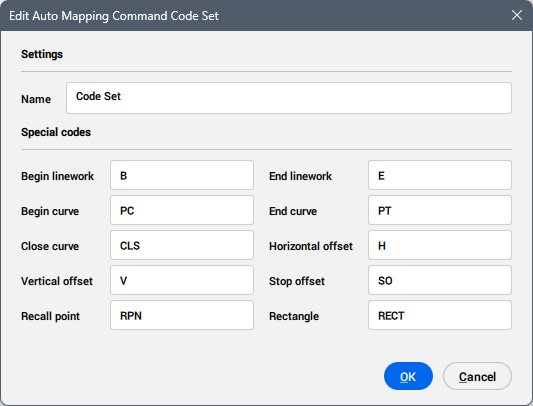
Settings
Allows you to set the command code set name.
- Name
- Displays the auto mapping command code set name.
Special codes
Allows you to define special codes to interpret survey instructions, such as beginning, ending, or curving lines.
- Begin linework
- Allows you to set the code indicating that a linework begins at the current point.
- End linework
- Allows you to set the code indicating that a linework ends at the current point.
- Begin curve
- Allows you to set the code indicating that a curve (arc) begins at the current point.
- End curve
- Allows you to set the code indicating that a curve (arc) ends at the current point.
- Close curve
- Allows you to set the code that closes the linework by creating a line segment from the current point to the starting point.
- Horizontal offset
- Allows you to set the code that indicates a relative horizontal offset to create a parallel linework starting at the current point. Enter the offset value directly after the code, with no space between the code and the value.
- Vertical offset
- Allows you to set the code that indicates a relative vertical offset to create a parallel linework starting at the current point. Enter the offset value directly after the code, with no space between the code and the value.
- Stop offset
- Allows you to set the code that ends all offsets.
- Recall point
- Allows you to set the code used to recall a civil point by specifying its point number immediately after the code. The linework is then generated by drawing a line from the point that contains the RPN code to the referenced point.
- Rectangle
-
Allows you to set the code that automatically creates a rectangular entity.