
Edit Auto Mapping Set dialog box
Opens via: Civil Explorer panel > Settings tab > Civil Points section > Auto Mapping Sets field > Create context menu option
The Edit Auto Mapping Set dialog box allows you to create codes to automatically assign point styles, point label styles, full descriptions, layers, scale and rotation to all points that share the same leading part in their point raw description attribute and create linework (strings) between points.
The Civil point raw description attribute specifies the automatic mapping code used to create the point in the drawing. When the auto mapping code matches a point raw description attribute, the properties defined for that code are applied to the point as it is added to the drawing.
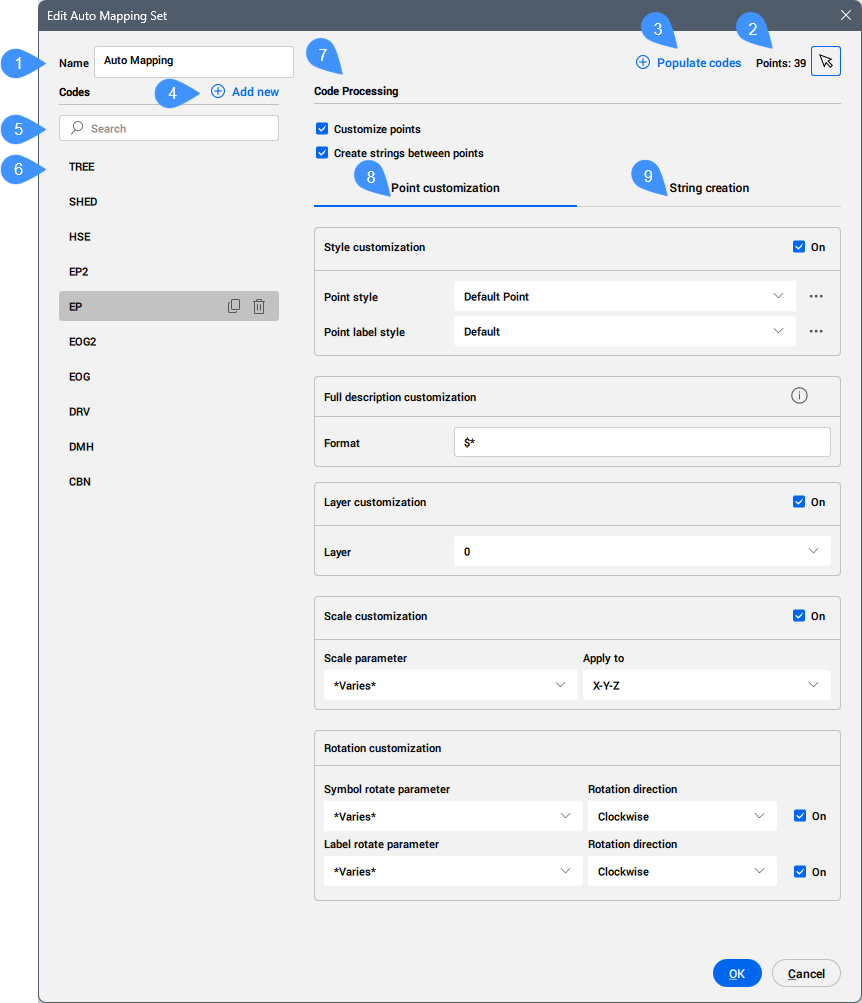
- Name
- Select points button
- Populate codes
- Add new
- Search bar
- List of codes
- Code Processing
- Point customization
- String creation
Name
Allows you to define a name for the auto mapping set.
Select points button
Allows you to select one or more points from the drawing area.
Populate codes
Adds codes found for the selected points into the list of codes.
Add new
Allows you to manually add a new code.
Click the default NewCode name created to rename it so that it matches the leading element of the point raw description attribute of the Civil point.
For more information, see the Create Civil Points dialog box article.
For example, if the point raw description attribute is TR 30 15 Fir, the code name must be TR.
When the code name matches the leading element of the point raw description attribute of existing Civil points, the mapping is completed automatically when launching the APPLYAUTOMAPPING command.
This means that all points in the drawing whose point raw description attribute starts with the selected code (for example, TR) automatically receive the corresponding point style, point label style, and other display parameters.
Search bar
Allows you to search the code list for a specific code.
List of codes
Lists all the codes created or imported from the selected Civil points.
The selected code can be duplicated or deleted.
Code Processing
- Customize points
- When turned on, allows you to customize the properties of the Civil point for a specified code.
- Create strings between points
- When turned on, allows you to create strings between Civil points.
Point customization
- Style customization
- Allows you to define how points with a specific code (for example, the leading part of the point raw description attribute of the Civil point) are displayed in the drawing.
- Point style
- Allows you to choose a point style from the drop-down list. Click the Select style button (
 )
)
- Point label style
- Allows you to choose a point label style from the drop-down list. Click the Select style button () to open the Select Style dialog box to edit or copy a point style.
- Full description customization
- Allows you to define rules for creating the point full description attribute of the Civil point based on its point raw description attribute.
Hover over the exclamation sign on the right-side to see all available options.
Here is an example of the available formats for a Civil point with the point raw description attribute defined as TR 30 15 Fir:
Format Point full description $* TR 30 15 Fir $t TR $1 30 $2 15 $3 Fir $2" $3 Tree with $1' Drip 15" Fir Tree with 30' Drip 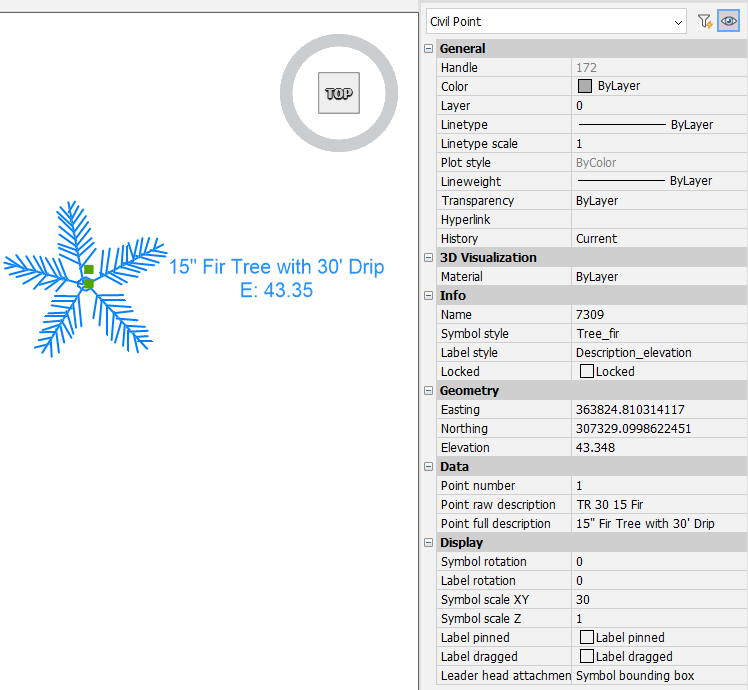
- Layer customization
- Defines the layer where to place all Civil points with the same code name. You can create a new layer by typing its name.
- Scale customization
- Allows you to automatically scale the Civil point symbol based on a chosen parameter value of the point raw description attribute of the Civil point.
- Scale parameter
- Allows you to choose a parameter of the point raw description attribute of the Civil point from the drop-down list.
- Apply to
- Allows you to choose how to scale the symbol, X-Y-Z, X-Y, or Z.
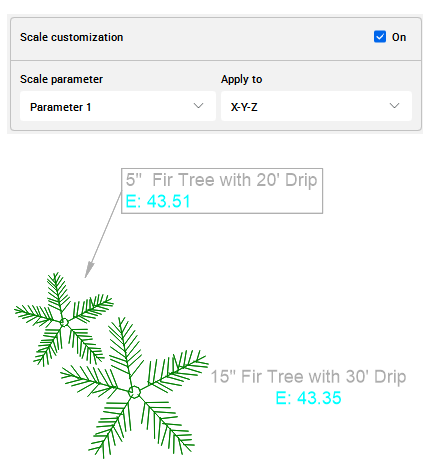
Here is an example of how the Parameter 1 of the point raw description attribute for two Civil points scales the Civil point symbols in the drawing.
The first Civil point with the point raw description defined as TR 30 15 Fir has the symbol scaled by 30, and the second with the point raw description attribute defined as TR 20 5 Fir has the symbol scaled by 20.
- Rotation customization
- Allows you to automatically rotate the Civil point symbol and label based on the value of selected parameter of the point raw description attribute of the Civil point.
- Symbol rotate parameter
- Allows you to choose a symbol rotate parameter of the point raw description attribute of the Civil point from the drop-down list.
String creation
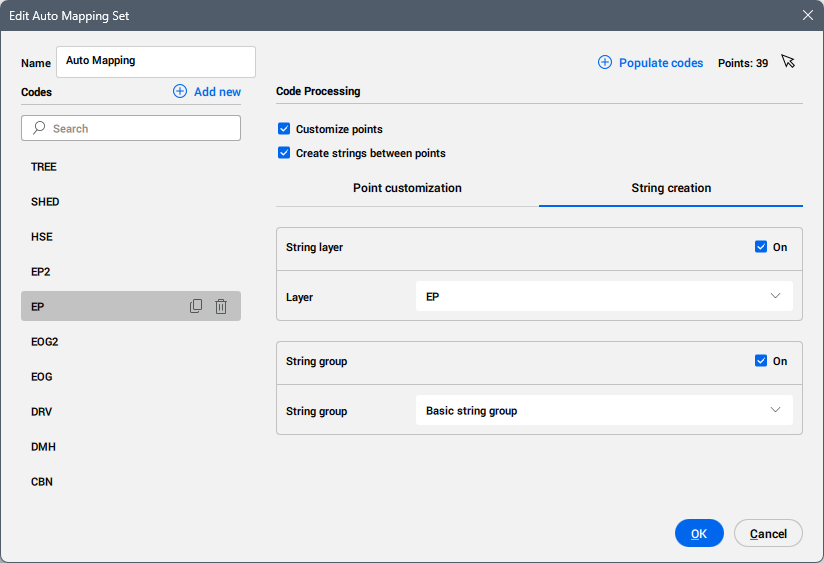
Allows you to define the auto mapping rules for strings created between Civil points.
- String layer
- Allows you to place the strings with the same code name on the selected layer. You can create a new layer by typing its name.
- String group
- Allows you to place the strings on the selected string group. You can create a new string group by typing its name.