
Section View Style dialog box
Opens via:
- Civil Explorer panel > Settings tab > context menu of a Section View Style > Create or Edit options.
- Select Style dialog box > Edit Style... button.
The Section View Style dialog box defines how a section view is displayed in a drawing.
Info tab
Displays information about the section view style.
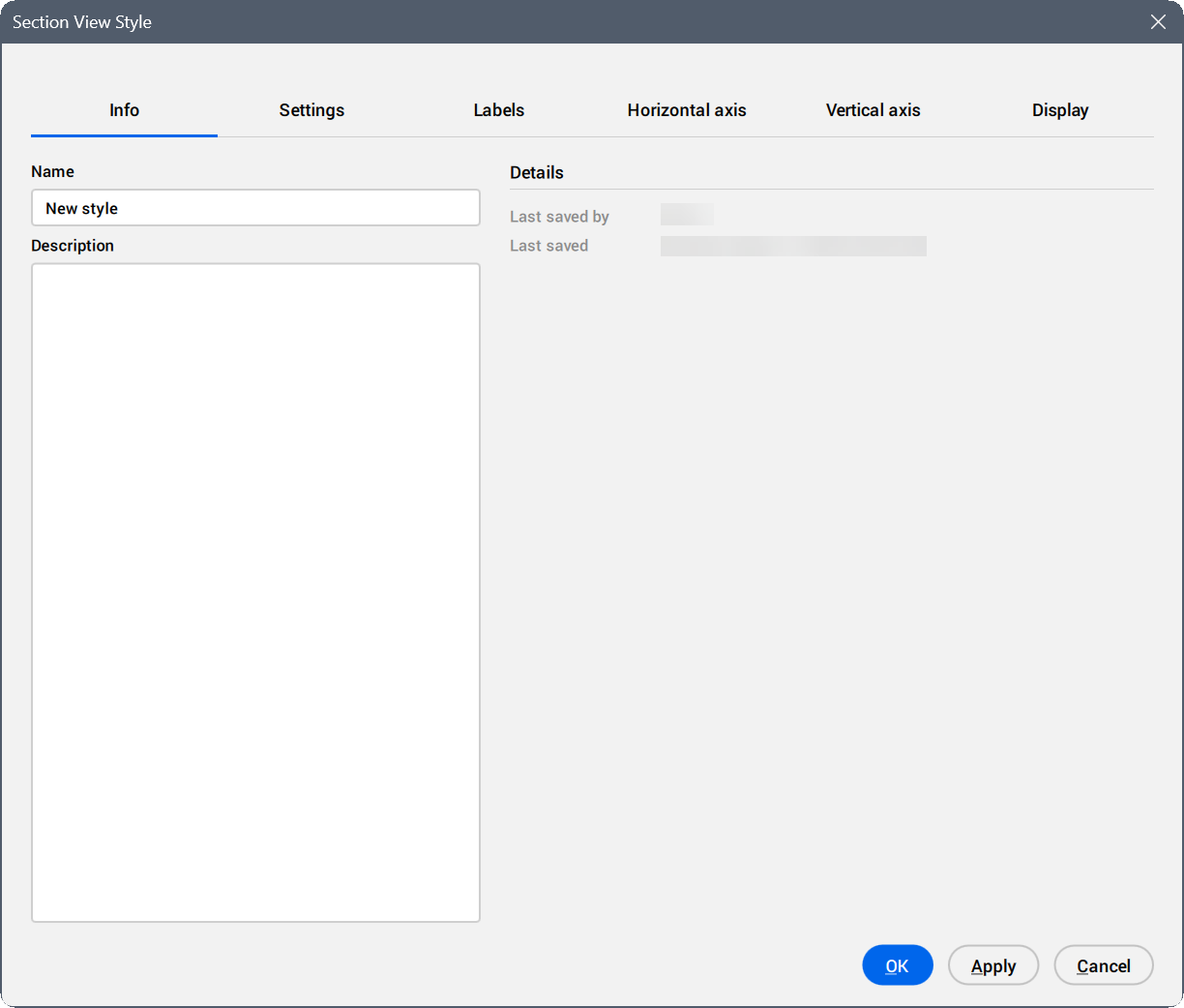
- Name
- Sets and displays the section view style name.
- Description
- Sets and displays the description of the section view style.
- Details
- Displays Last saved by and Last saved dates.
Settings tab
Defines general section view style settings.
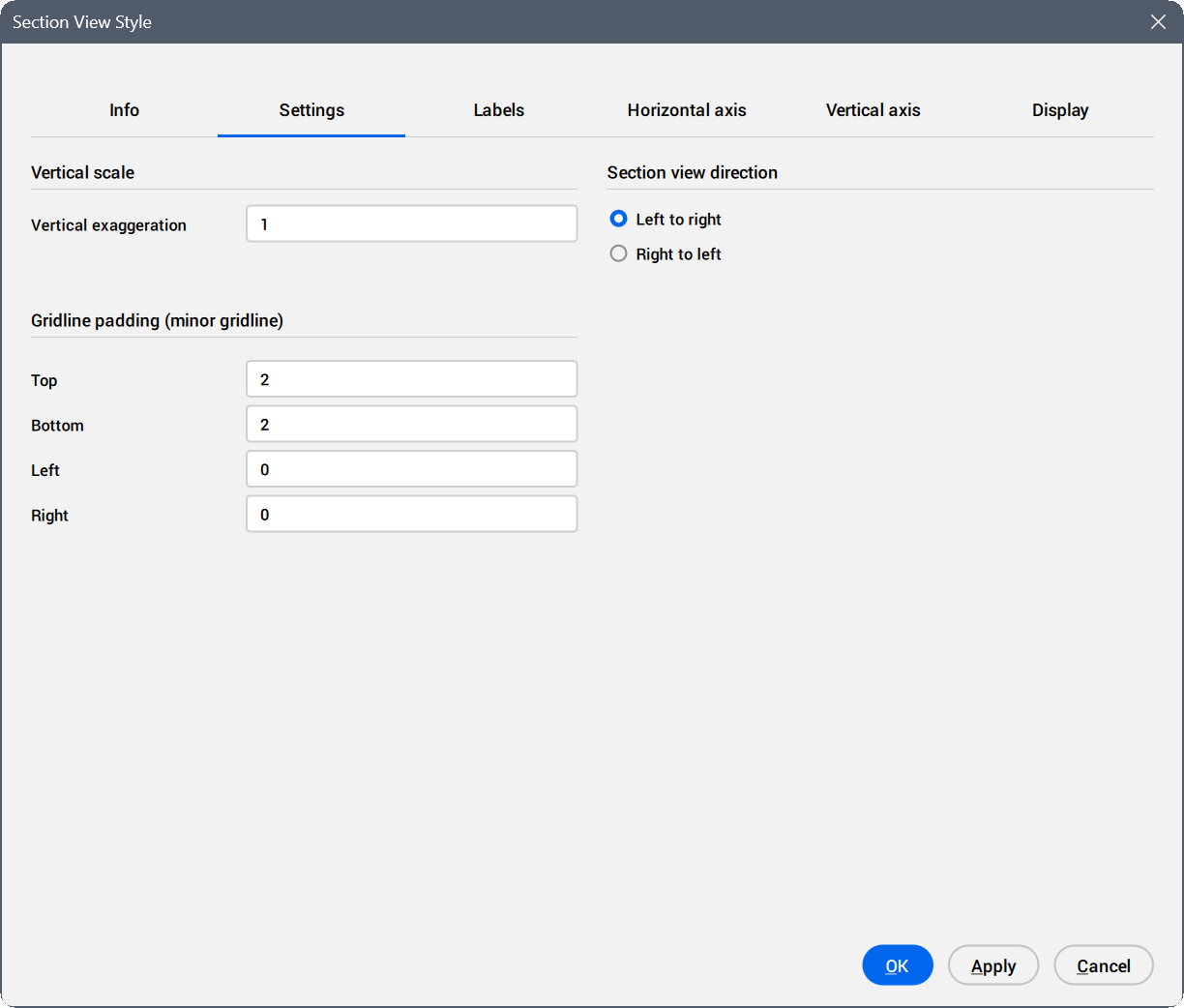
- Vertical scale
- Sets vertical exaggeration factor.
- Vertical exaggeration
- Scales the vertical axis in section views by specifying how much elevation values are multiplied to improve the visibility of elevation changes.Note: A value of 1 indicates no vertical exaggeration, while higher values increase the scale, making elevation differences more pronounced in the profile view.
- Section view direction
- Sets the direction of the section view.
- Left to right
- Sets the section view direction from left to right, as if looking from the lowest station to the highest station on the alignment.
- Right to left
- Sets the section view direction from right to left, as if looking from the highest station to the lowest station on the alignment.
- Gridline padding (minor gridline)
- Specifies the margin, measured in minor gridline intervals, around the section view extents.
- Top
- Sets the distance from the top edge of the frame to the gridlines.
- Bottom
- Sets the distance from the bottom edge of the frame to the gridlines.
- Left
- Sets the distance from the left edge of the frame to the gridlines.
- Right
- Sets the distance from the right edge of the frame to the gridlines.
Labels tab
Adds and manages section view labels.
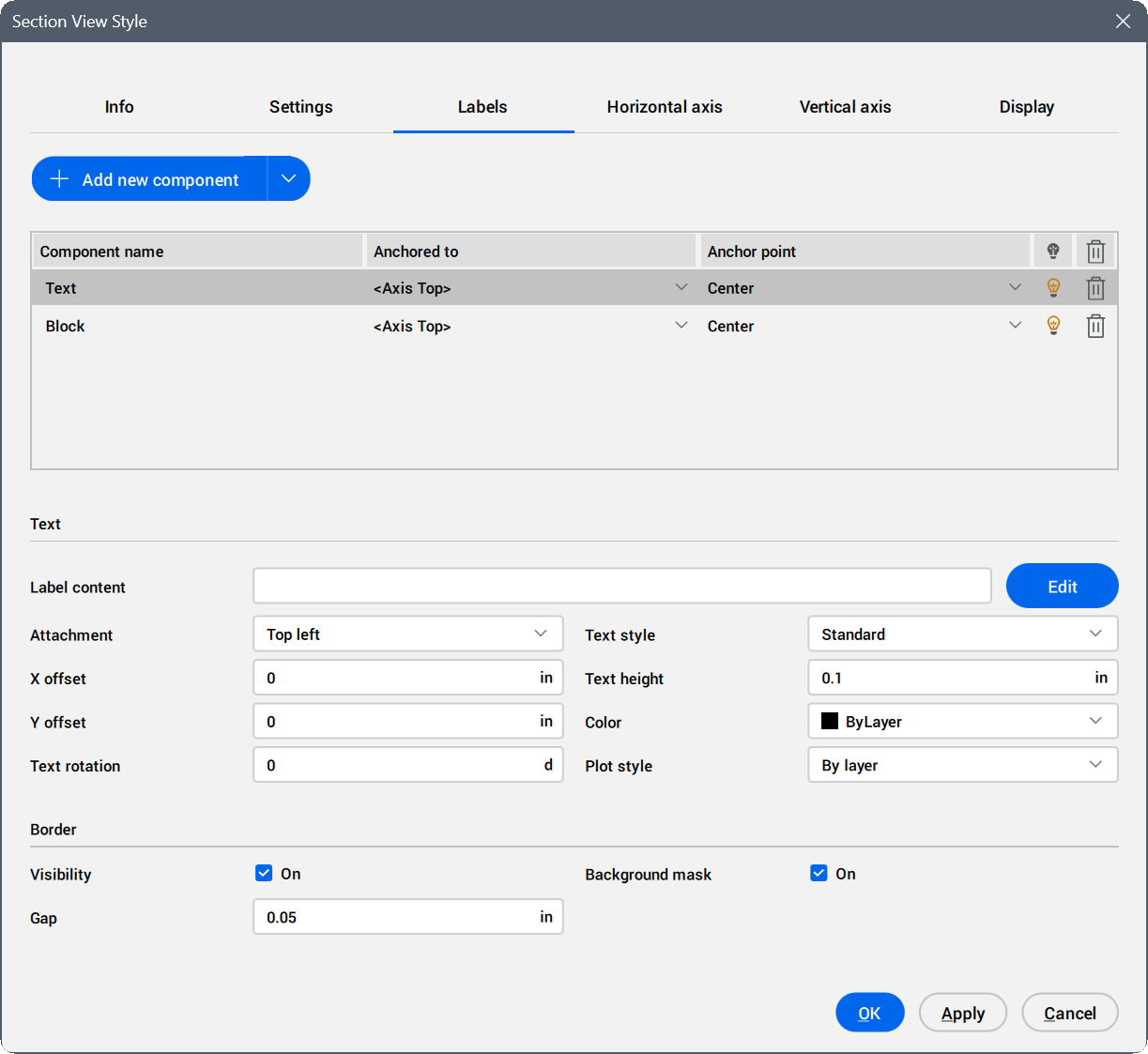
- Add new component button
- Adds a new Text component defining the section view style.
To add a Block component to the list, click the arrow on the right side of the button to open the drop-down list and choose Block.
- List of components
- Lists the components of the section view style.
- Component name
- Displays the component names.
- Anchored to
- Defines the position (anchoring) dependency between section view style components.
A component can be aligned either relative to the selected edge of the section view frame or relative to another component.
The alignment options include:
- <Axis Top> – aligns the component with the top horizontal edge of the frame.
- <Axis Bottom> – aligns the component with the bottom horizontal edge of the frame.
- <Axis Left> – aligns the component with the left vertical edge of the frame.
- <Axis Right> – aligns the component with the right vertical edge of the frame.
- All other text and block components listed – select one to align the current component to.
- Anchor point
- Defines the anchor point of the component, either on the selected edge of the section view frame, or on the dependent component to which it is anchored.
Click the Anchor point field or the arrow on the right to the field of a component to open a drop-down list of available positions.
When aligning a text or block to an axis, you can specify its exact position on the frame edge.
- Left – attaches the component to the left side of a horizontal axis.
- Center – attaches the component to the center of a horizontal axis.
- Right – attaches the component to the right side of a horizontal axis.
- Top – attaches the component to the top side of a vertical axis.
- Middle – attaches the component to the center of a vertical axis.
- Bottom – attaches the component to the bottom side of a vertical axis.

When aligning a text or block to another component, you can place it on the chosen anchor point of that component.
- Top left – attaches the component to the top left side of the anchor point.
- Top center – attaches the component to the top center side of the anchor point.
- Top right – attaches the component to the top right side of the anchor point.
- Middle left – attaches the component to the left side of the anchor point.
- Middle center – attaches the component to the center of the anchor point.
- Middle right – attaches the component to the right side of the anchor point.
- Bottom left – attaches the component to the bottom left side of the anchor point.
- Bottom center – attaches the component to the bottom center side of the anchor point.
- Bottom right – attaches the component to the bottom right side of the anchor point.
- Visible
- Turns on or off the visibility of the component.
- Remove
- Removes the component.
Note: To change the order of the list, select a column header and drag it to a new position.
- Components properties
- Defines the properties of the text or block component.
- Text
-
- Label contents
- Displays the content of the text component label.
Click the Edit button to open the Text Content Editor dialog box to add, edit or remove attributes displayed in the label. See the Text Content Editor dialog box for more information.
- Attachment
- Sets the position of text components relative to the selected point. Click the field to open a drop-down list with the available positions.
- X offset
- Specifies the offset of the text component from the symbol in the X direction.
- Y offset
- Specifies the offset of the text component from the symbol in the Y direction.
- Text rotation
- Sets the rotation angle of the text component. The default rotation angle is 0.
- Text style
- Specifies the text style used for the text component.
- Text Height
- Sets the height of the text components.
- Color
- Sets the color of the text component.
Click the field to open a drop-down list and choose a color, or choose Select color... to open the Color dialog box. See the Color dialog box article for more information.
- Plot style
- Sets the plot style of the text component.
- Border
- Defines the border of the section views.
- Visibility
- Sets the visibility of the section views.
- Background mask
- Adds a white background.
- Gap
- Sets the gap of the border.
- Block
-
- Block name
- Displays the block name.
To assign a block to the component, click the arrow to open the drop-down list and select a block from all blocks available in the drawing.
- Block height
- Sets the height of block component in the drawing.
- Color
- Sets the color of the block component.
Click the field to open a drop-down list and choose a color, or choose Select color... to open the Color dialog box. See the Color dialog box article for more information.
- Plot style
- Sets the plot style from the drop-down list of available plot styles.
- Attachment
- Sets the position of block components relative to the selected point. Click the field and select an attachment point from the drop-down list.
Examples:
- If you select Insertion point, the block is placed using its defined insertion point.
- If you select Top left, the block is placed using its upper-left corner instead of the insertion point.
- X offset
- Specifies the offset of the block component from the insertion point in the X direction.
- Y offset
- Specifies the offset of the block component from the insertion point in the Y direction.
- Rotation
- Sets the rotation angle of the block component. The default rotation angle is 0.
Horizontal axis tab
Manages the horizontal intervals and labels for horizontal gridlines in section views.
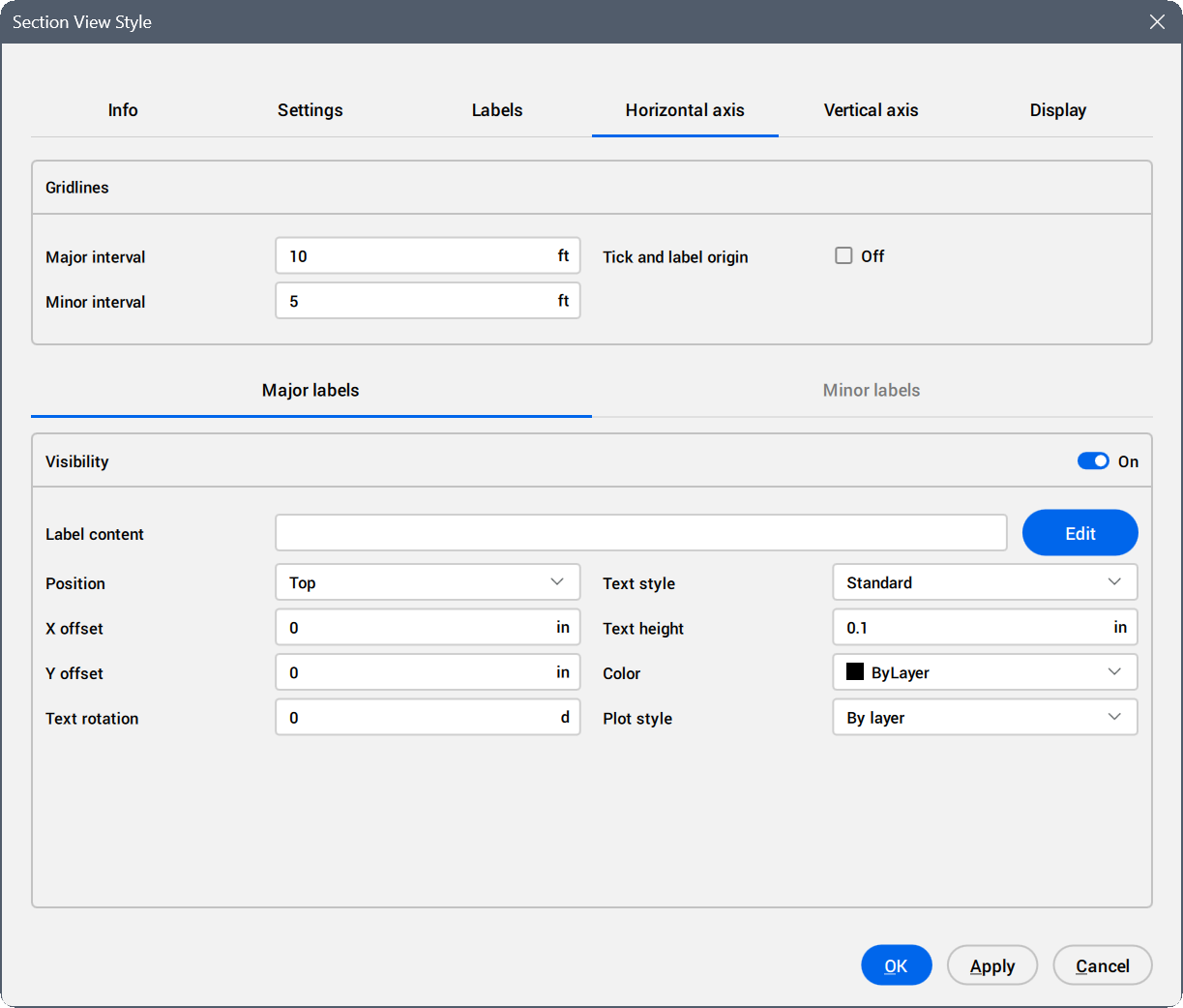
- Gridlines
- Sets the gridlines.
- Major interval
- Sets the major interval for gridlines.
- Minor interval
- Sets the minor interval for gridlines.
- Tick and label origin
- Sets the visibility of tick marks and labels at the origin. Tick the checkbox to turn on the visibility.
- Major labels
- Defines the labels for the major interval of gridlines.
- Visibility
- Toggles the visibility of the labels.
- Label content
- Displays text content of the label.
Click the Edit button to open the Text Content Editor dialog box to add, edit or remove attributes displayed in the label. See the Text Content Editor dialog box for more information.
- Position
- Sets the position for the label relative to the gridlines.
- X offset
- Sets the offset of the label from the insertion point in the X direction.
- Y offset
- Sets the offset of the label from the insertion point in the Y direction.
- Text rotation
- Sets the rotation angle of the label text. The default value is 0.
- Text style
- Specifies the text style used for the label text.
- Text height
- Sets the height of the label text.
- Color
- Sets the color of the label.
- Plot style
- Sets the plot style from the drop-down list of available plot styles.
- Minor labels
- Defines the labels for minor gridline intervals, using the same settings as for the Major labels above.
Vertical axis tab
Manages the vertical intervals and labels for vertical gridlines in section view.
For a detailed description, see the Horizontal axis tab section above.
Display tab
Manages the visibility and display characteristics for each component from section views.
- To sort the list in either ascending or descending order, click the title in the column heading.
- Right-click any column heading to open a context menu, from which you can hide unnecessary columns or reset the columns to their original positions.
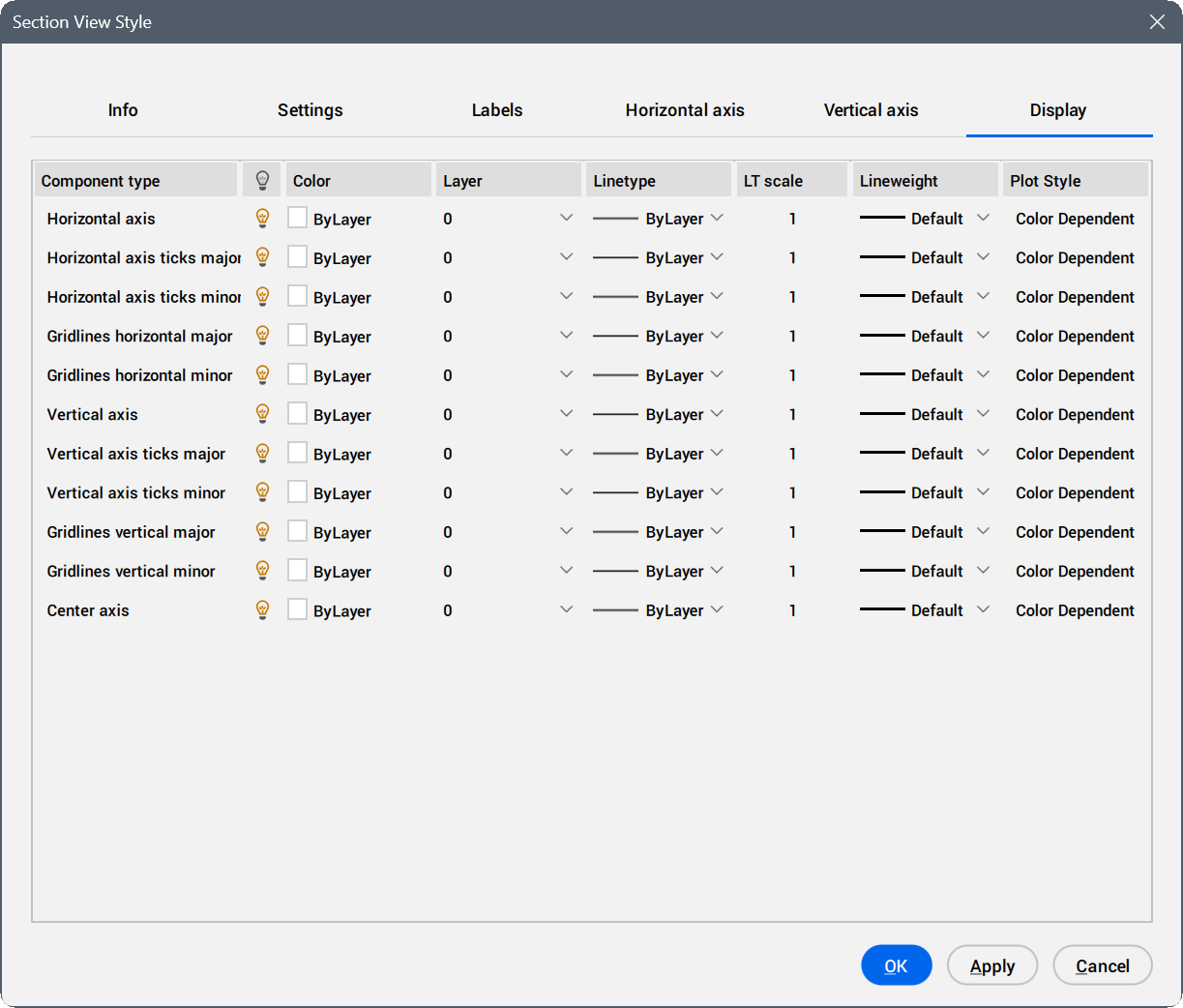
- Component Type
- Displays the component types.
- Visibility
- Displays the component visibility. Click the icon to change the visibility.
- Color
- Displays a color for the component.
Click the field to open the Color dialog box. See the Color dialog box article for more information.
- Layer
- Displays the layer for components. Choose another one from the drop-down list of available layers.
- Linetype
- Lists the available patterns for the component. Click the Load... option from the drop-down list to open the Load Linetypes dialog box.
- LT scale
- Displays the linetype scale for the component. Click the field to edit.
- Lineweight
- Specifies the weight of the lines for the component. Click the field to open a drop-down list with additional lineweight options.
- Plot style
- Displays the plot style for the component.