
Tool Palettes panel
To open the Tool Palettes panel:
- Run the TOOLPALETTES command.
- Right-click a ribbon panel or toolbar and choose Tool Palettes from the Panels list.
The Tool Palettes panel offers a central, highly customizable location to easily access blocks, hatches and various command tools.
It includes default tabs with sample tools. To add custom tabs and tools, use the options in the context menu, which you can open in one of the following ways:
- Click the three dots menu in the upper right corner of the panel.
- Right-click a palette name or an empty space of the icon area of the panel.
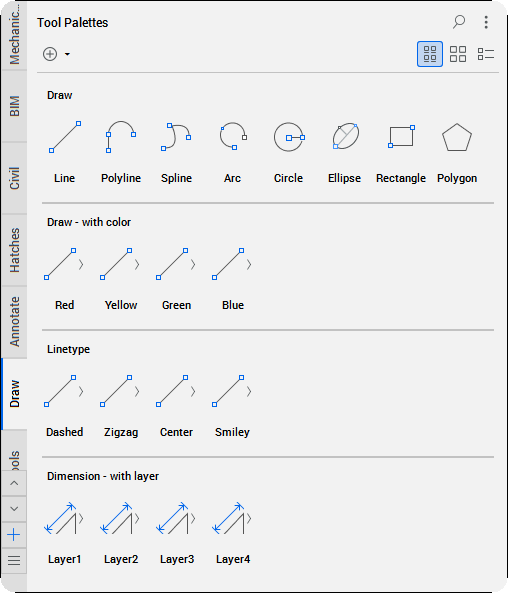
Palettes Tabs
Displays tabs of available palettes.
Note:
- The tab items have a fixed height, so the name may not always be fully shown. Double-click a palette name to rename it, or right-click a palette to open the context menu offering additional options.
- The Palettes Tabs bar opens by default on the left side of the panel, but it changes its position depending on the docking of the Tool Palettes panel.
- Scroll arrows (
 ,
,  )
) - Scrolls through the palette tabs. The arrows are grayed out when all tabs are visible.
- Add button (
 )
) - Opens the Add tool palette dialog box to name a new palette.Note: You can also create a new tool palette by right-clicking a palette name and selecting New Palette from the context menu or by using the three dots menu and selecting New Palette.
- Tool list (
 )
) - Shows a list of the available tool palettes. Use it to quickly select any of the palettes.
Tools
Displays available tools in the current palette. Default tools are grouped by separators and labeled with text titles.
- Add selected to tool palette (
 )
) - Adds the selected hatch or block from the drawing to the current palette.
- View style
-
- Icon with text

- Displays tools in a grid view with both icons and text.
- Icon only

- Displays tools in a grid view with icons only.
- List view

- Displays the tools in a list view in the current palette.
- Icon with text
- Tool context menu
- Right-click a tool to open a context menu displaying additional customization options.
- Cut
- Copies and removes the selected tools from the palette.
- Copy
- Copies the selected tools to the clipboard.
- Delete
- Removes the selected tools from the palette.
- Rename
- Renames a tool.
- Specify Image…
- Opens the Select Image File dialog box to set an image as a thumbnail for the selected tool.Note:
- To restore the original tool image, right-click the tool and select Remove Image... from the context menu.
- Supported file formats are BMP, GIF, JPEG, JPG, PNG, TIF.
- Manage Flyout options...
- Opens the Flyout Options dialog box to customize tool flyouts. For more information, see the Flyout Options dialog box article.
- Properties…
- Opens the Tool Properties dialog box to view and edit properties of the selected tools. For more information, see the Tool Properties dialog box article.
Tool Palettes context menu
Opens the tool palettes context menu.
- View Options…
- Opens the View options dialog box to modify the display of the tool icons. For more information, see the View options dialog box article.
- Paste
- Pastes the copied element into the current palette.
- Add text
- Adds a text element into the current palette.
- Add Separator
- Adds a separator into the current palette.
- Update Palette
- Updates the palette.
- New Palette
- Opens the Add tool palette dialog box to create a new palette.
- Delete Palette
- Deletes the current palette. The Confirm Palette Deletion dialog box opens to confirm the removal.
- Rename Palette
- Opens the Rename tool palette dialog box to rename the current palette.
- Customize Palettes…
- Opens the Customize (Tool Palettes) dialog box to customize the palettes. You can import and export palettes or create, import and export palettes groups. For more information, see the Customize (Tool Palettes) dialog box article.
- Add Tool...
- Opens the Customize dialog box to add a new tool. For more information, see the Customize dialog box article.