
TABCONSULTABLOQUE comando
Abre un cuadro de diálogo de parámetros de consulta.

Ícono: 
Aviso de exención de responsabilidad
Importante: En caso de que adquiera BricsCAD en EE. UU. o para utilizarlo en EE. UU., la función para crear o editar definiciones de bloques dinámicos no está disponible ni cuenta con licencia para su uso. Consulte el EULA para obtener más información.
Descripción
Muestra o crea una tabla de consulta para una acción de consulta en una definición de bloque dinámico.
Método
En el Editor de bloques, haga doble clic en una entidad de acción de consulta o ejecute el comando y seleccione una acción de consulta. Se abre el cuadro de diálogo Tabla de consulta de propiedades.
The Property Lookup Table dialog box edits the properties of the selected lookup action.
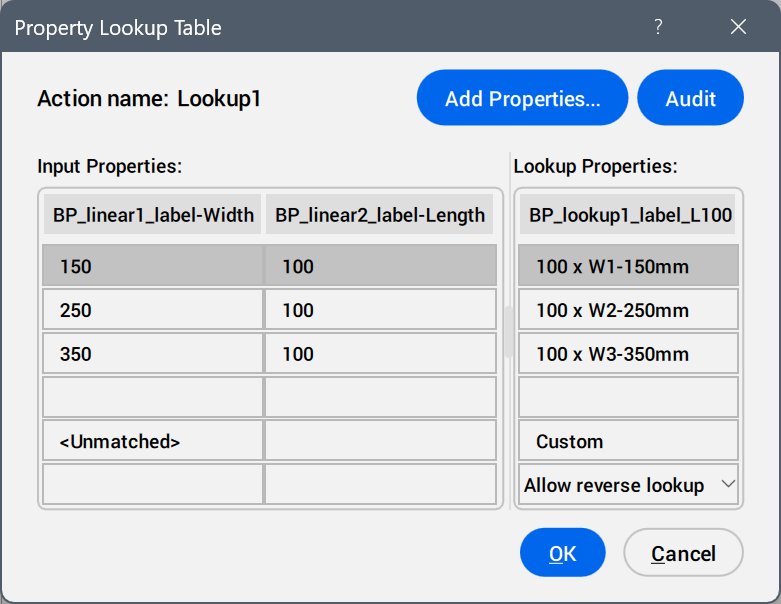
- Add Properties ...
- Opens the Add Parameter Properties dialog box to display the available parameters.
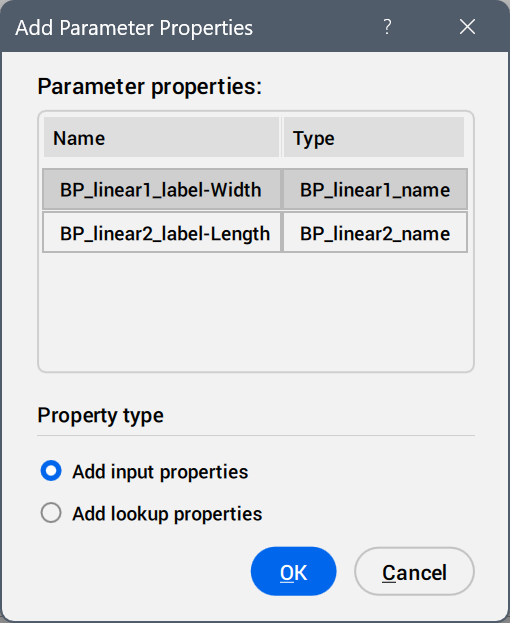
Select the parameters to be added as property columns.
- Audit
- Searches for errors in the Property Lookup Table.
- Input Properties
- Edits the values of the added parameters.
- Lookup Properties
- Adds names to the lookup table options.
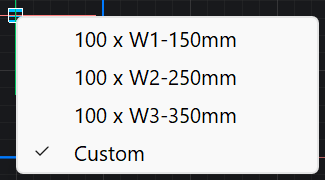
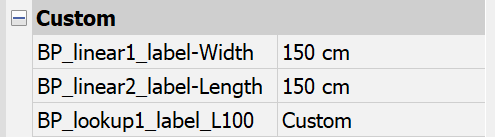
- Custom
- Displays as a lookup table option when a value is inserted manually in the Properties panel for a parameter used in the lookup table.
- Reverse lookup drop-down list
-
- Read only
- Deactivates the reverse lookup.
- Right-click a column header to display the context menu options.
-
- Sort
- Sorts the rows in the table based on the values in the selected column, ascending or descending.
- Delete property column
- Deletes the selected parameter column.
- Clear contents
- Removes the cell contents of the selected column.
- Right-click a cell to display the context menu options.
-
- Insert row
- Inserts a row above the selected one.
- Delete row
- Deletes the selected row.
- Clear contents
- Removes the content of the selected row.
- Move up
- Moves the row up a position.
- Move down
- Moves the row down a position.