
Calculate Section Volumes dialog box
Opens via: CALCULATESECTIONVOLUMES command
The Calculate Section Volumes dialog box allows you to define the elements included in the section volume calculation.
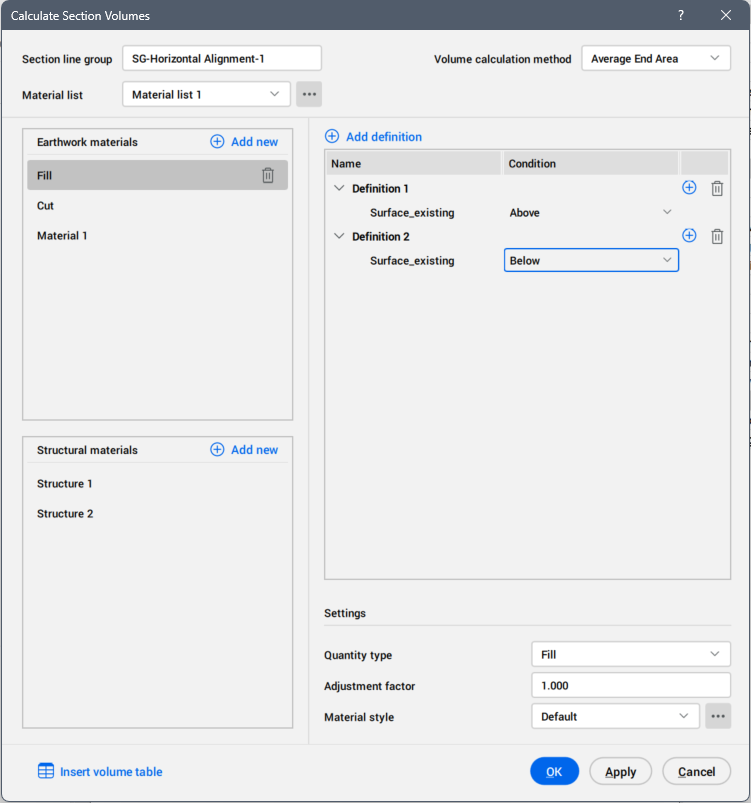
- Section line group
- Displays the section line group.
- Material list
- Allows you to select which material list to use.
- Volume calculation method
- Allows you to select the calculation method from the drop-down list.
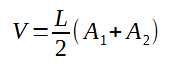
- Average End Area
- Calculates the volume with the formula:
-
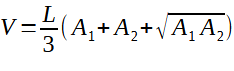
- Prismoidal
- Calculates the volume with the formula:
-
- Earthwork materials
Lists the defined earthwork materials.
The earthwork materials are calculated between two or more surfaces (for example, cut, fill, topsoil stripping, etc), which you can define on the right side by selecting the Add definition button.- In more complex cases, multiple surfaces may be used and multiple definitions may be required to accurately describe the desired material.
- Add new button
- Allows you to add a new earthwork material name.
- Add definition button
- Allows you to add a new definition for calculation. A definition has to contain the surfaces and their condition.
For the selected definition you can find on the right side the add and delete buttons.
- Settings
- Allows you to set the characteristics of the Earthwork materials.
-
- Material style
- Determines how the material is displayed in the section view. You can select a predefined material style from the drop-down list or click the Browse button (
 ) to open the Select Style dialog box, where you can edit the current style or create a new one by copying an existing style.
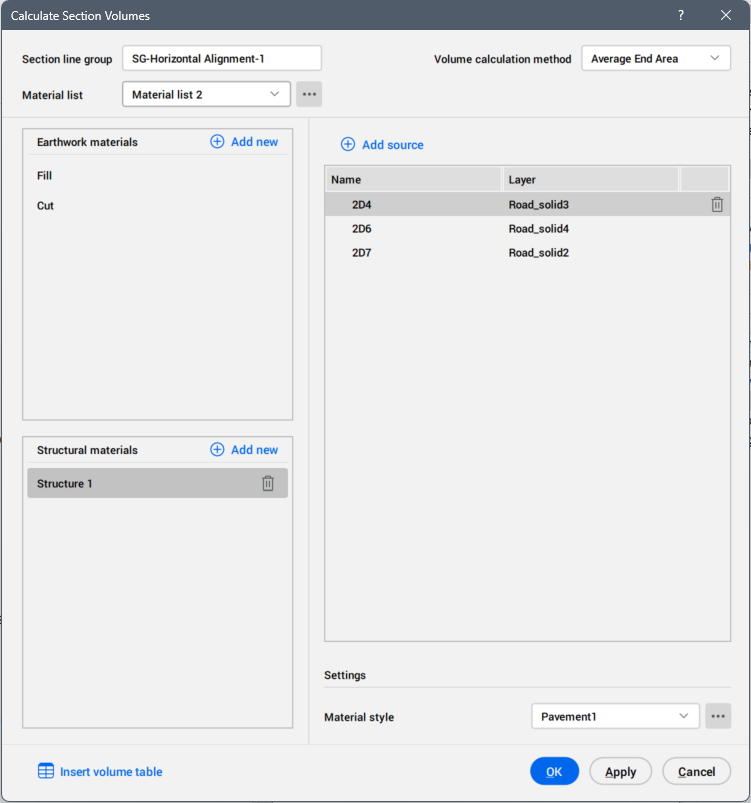
- Structural materials
- Materials are defined by 3D objects, such as 3D Solids or closed meshes (for example, layers of a road or railway structure, retaining wall, curb, etc.). To define a structural material, select a 3D Solid or a mesh. One or multiple objects can be selected. Each material has a defined style, which determines how it is displayed in the section view.
-
- Insert volume table button
- Opens Create material Volume Table dialog box.