
Parameters Manager panel
- Run the PARAMETERSPANELOPEN command.
- Right-click a ribbon panel or toolbar and choose Parameters Manager from the Panels list.
The Parameters Manager panel is the main tool to view and modify parameters and constraints in the current drawing.
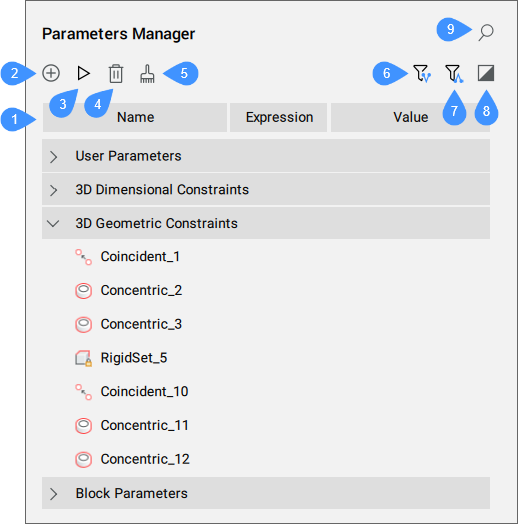
- Parameters list
- New parameter
- Animate
- Delete
- Clean unused variables
- Show dependent parameters
- Show defining parameters
- Show selected
- Search
Parameter list
Displays a list of all the parameters in the drawing. The parameters are organized into expandable categories, which can include action parameters, user parameters (including the ones that are linked with Design Tables), 2D dimensional constraints, 2D geometric constraints, reference parameters, block (components) parameters, array parameters, 3D dimensional constraints, and 3D geometric constraints.
- Parameter list header
- The parameter list header contains columns that represent the properties of the parameters. Columns can be moved to a new position, resized or hidden. You can arrange parameters in ascending or descending order by pressing a specific column head. The parameter list header has three columns by default: Name, Expression and Value. To add more columns, right click the columns header and select the desired columns from the list.Note: Some properties are read-only (for example Type), others can be modified by the user (for example Name).
- Name
- Displays the name of the parameter.
- Expression
- Specifies the mathematical expression of the parameter. You can edit the expression by clicking on the cell.
- Value
- Displays the value resulting from the parameter’s expression. The value is a read-only real number, unless the parameter is linked to a Design table. In that case, the parameter has a list of possible values represented as a combo-box. You can change the parameter's value by picking a new value from the list. The combo-box is searchable by typing a sub-string of the value to quickly find it. This is useful for large lists of values.
- Type
- Displays the parameter's type:
- Constraint type for constraints (Distance, Concentric etc.).
- Parameter's type for user and block parameters (Real, String).
- Parameter's type for array parameters (Real, Boolean, Enumeration).
- GD (geometry-driven)
- If ON, the parameter is geometry-driven.
- Lower bound
- Defines the lower value for the parameter.
- Upper bound
- Defines the upper value for the parameter.Note: The upper and lower bounds are taken into account in dynamic operations, like DMMOVE and ROTATE3D.
- Enabled
- Defines whether a geometric constraint parameter is taken into consideration.
- Exposed
- Defines whether the parameter is visible and can be modified when the component is inserted in an assembly.
- Units
- Sets the dimension of the parameter. You can choose between: none, linear (mm), square (mm2) and cubic (mm3).
- Directions
- Defines the direction for a geometric constraint parameter (any, same, opposite or reset).
- Description
- Allows you to type a description for the user parameters.
- Options in parameters context menus
- Right-click a parameter to open a context menu. Only the options that apply to that item are displayed. You can also find these options in the Mechanical Browser panel, in the context menu of the same item.
New parameter
Inserts a new user parameter with default values for Expression and Value.
Animate
Animates the selected parameter value within a range.
Delete
Removes selected parameters and constraints from the drawing.
Clean unused variables
Erases unused variables.
Show dependent parameters
When enabled, the panel shows parameters and constraints, depending on the selected parameter(s).
Show defining parameters
When enabled, the panel shows parameters which define the selected parameter(s).
Show selected
When enabled, the panel shows parameters and constraints for the objects currently selected in the model space, or all objects if nothing is selected.
Search
Filters the parameter list to display only the parameter names that match the character string you enter in the search box.
 ) button next to the search field to remove the active filter.