
ALIGNMENTVIEW command
Creates a vertical alignment view for the selected horizontal alignment.

Icon: 
Method
The Select Alignment dialog box opens to select a horizontal alignment.
Note: When a horizontal alignment is already selected in the drawing, the Select Alignment dialog box does not open.
Then, the Create Vertical Alignment View dialog box opens.
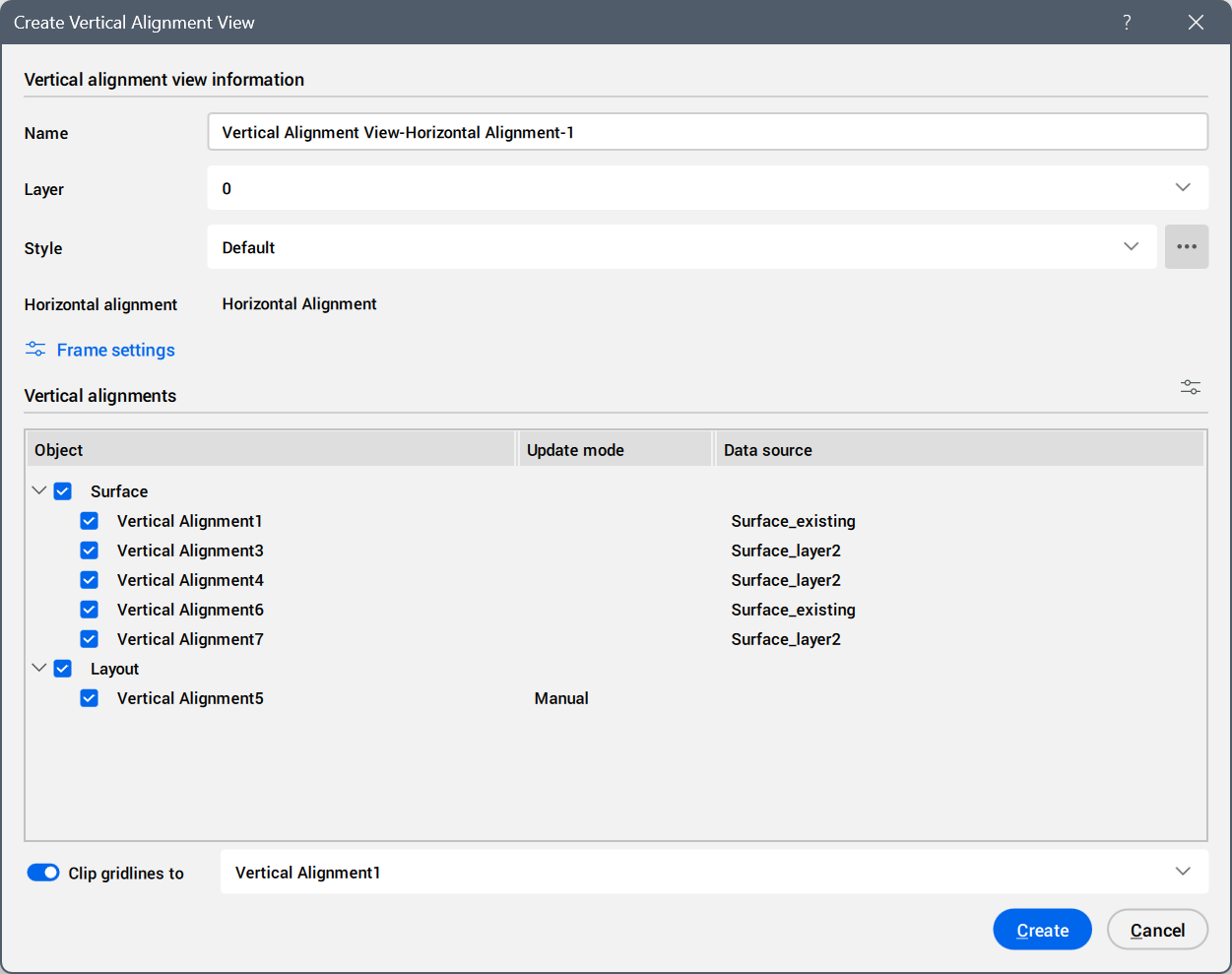
Vertical Alignment View information
Specifies the vertical alignment view details.
- Name
- Sets the name of the new vertical alignment view.
- Layer
- Sets the layer on which the vertical alignment view is created. Click the field to open the drop-down list with available layers.
- Style
- Sets the style for the vertical alignment view.
Click the Select or edit style... button (
 ) to open the Select Style dialog box. To edit the current style, click the Edit style... button to open the Vertical Alignment View Style dialog box. To create a new style, copy an existing style.
- Horizontal alignment
- Displays the horizontal alignment name associated with the vertical alignment view.
- Frame settings button
- Opens the Frame Settings dialog box to define the view frame dimensions.
Vertical alignments
Lists which vertical alignment objects are displayed in the vertical alignment view.
- Manage vertical alignments button
- Click the (
 ) button to open the Manage vertical alignments dialog box, where you can edit the vertical alignments.
- Object
- Lists available vertical alignment objects grouped by source type (for example, Surface or Layout).
Only checked objects are displayed in the vertical alignment view.
- Update mode
- Displays how the vertical alignment updates when its source changes.
- Data source
- Displays the source used to create the vertical alignment.
- Clip gridlines to
-
Toggles the option to choose the vertical alignment used for clipping gridlines from the drop-down list.