
BricsCAD Analytics Program
The BricsCAD Analytics Program process improves BricsCAD by sharing pseudonymized diagnostics and usage data.
The End User License Agreement (EULA) outlines how the usage data is collected and used.
Users without an active BricsCAD license are required to log in to activate the Trial and, by default, participate in the BricsCAD Analytics Program, sending system, settings and application data.
Anonymized geometry data sharing is disabled by default for both Trial users and licensed users. Users must explicitly opt in before BricsCAD can collect or share geometry data.
When BricsCAD is launched for the first time during the Trial, the BricsCAD Setup dialog box provides additional information about the BricsCAD Analytics Program and the sharing of application data with BricsCAD.
At any time during the Trial, users can open the BricsCAD Analytics Program dialog box or use the Data Driven Enhancements drop-down in the Settings dialog box to change their preferences or stop sharing data.
Users with an active BricsCAD license are not required to log in to their accounts and, by default, do not participate in the BricsCAD Analytics Program or send system, settings and application data.
If a BricsCAD license is activated via a valid license key after the free Trial ends, users retain their log in status and data collection settings. They continue to participate in the program and send data unless these settings are changed.
Users are re-informed about the program and that BricsCAD is sharing anonymous application data.
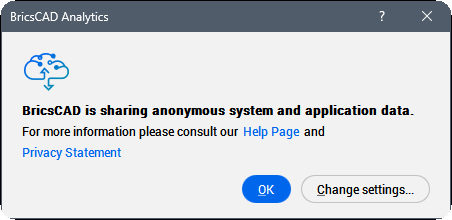
You can decide at any time to withdraw your consent and to have your data removed from our databases. If possible, BricsCAD sends updated AI models to users.
When transferring data, a unique, anonymous ID is used. The following data and information are removed:
- All personal project information.
- All texts and leaders.
- All information that is stored in the Settings dialog box.
When you launch BricsCAD for the second time or click the Sign Up button from Predict ribbon tab, a dialog box displays asking you to participate in the BricsCAD Analytics Program.
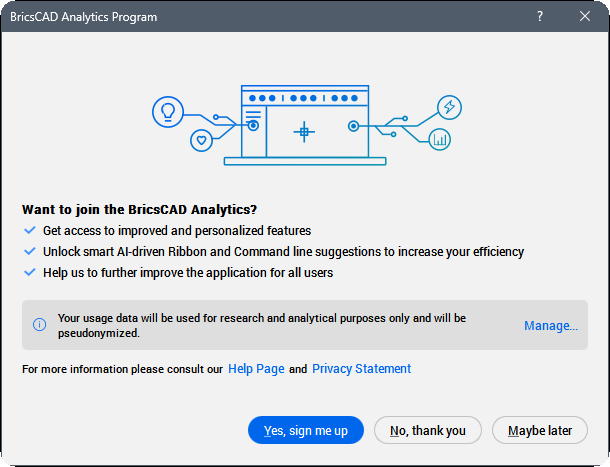
Click the Manage... button to choose the types of data you wish to share.
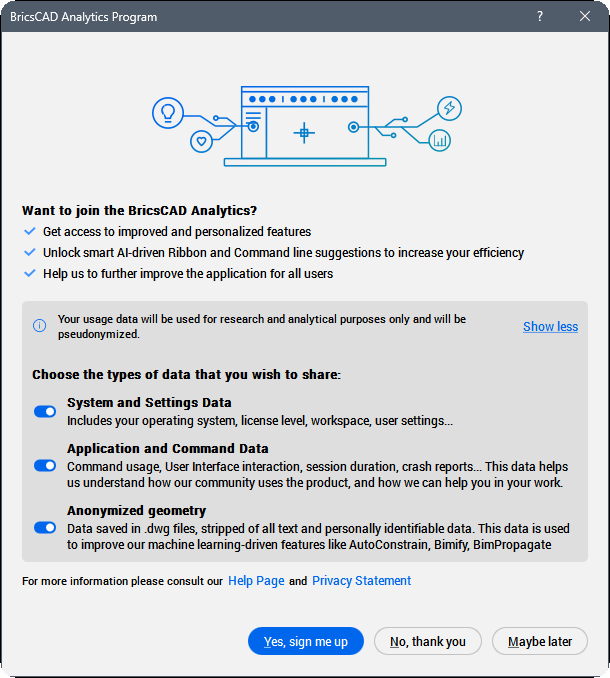
If you choose No, thank you, the BricsCAD Analytics Program is turned off.
If you choose Maybe later or you close the dialog box, the BricsCAD Analytics Program dialog box appears again next time you open BricsCAD.
If you choose Yes, sign me up, you sign up for the BricsCAD Analytics Program. The BricsCAD website opens to log in to your BricsCAD account. For more information on how to log in, see the Log in with your account article.
When you are logged in, you can use the Analytics Settings button, available in the Predict ribbon tab, to open the BricsCAD Analytics Program.
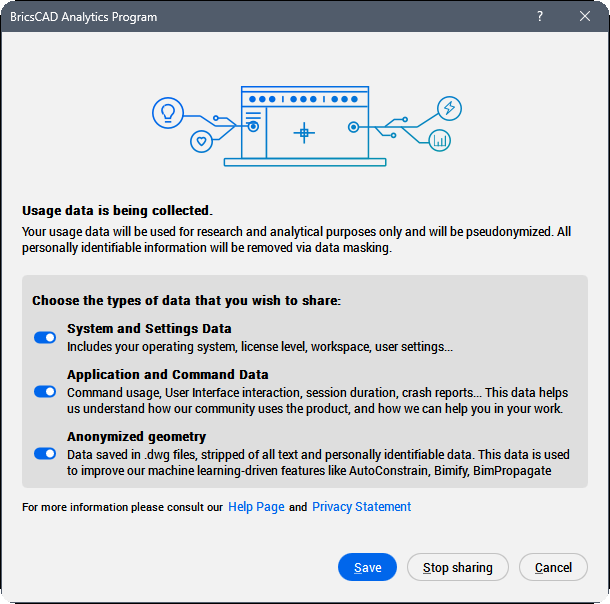
By choosing Save, the BricsCAD Analytics Program collects the selected data.
By choosing Stop sharing, the BricsCAD Analytics Program is switched Off.
By choosing Cancel, the BricsCAD Analytics Program dialog box closes.
The status of your agreement is saved through the DATACOLLECTION system variable as indicated in the table below.
| Value | Status | Result |
|---|---|---|
| -2 | Not asked | When you close BricsCAD, the value is set to [-1] Not Set. |
| -1 | Not set | When you restart BricsCAD, the BricsCAD Analytics Program dialog displays, asking you to participate. |
| 0 | Off | The Diagnostics and usage data collection process is switched Off. |
| 1 | On |
The Diagnostics and usage data collection process is switched On. |
Stopping the process
- In the Settings dialog box, under , set DATACOLLECTION to [0] Off.
- Close and restart BricsCAD.
Restarting the process
- In the Settings dialog box, under , set DATACOLLECTION to [-1] Not set.
- Close and restart BricsCAD.
- Click the Manage... button, choose the types of data that you wish to share, press the Yes, sign me up button, then log in with your BricsCAD account.
Removing your data from the database
To withdraw your consent and have your data removed from our databases, send in a support request and select the Data Collection category under BricsCAD.