Opens via:
- Civil Explorer panel > Settings tab
- Select Style dialog box > Edit style... button or Copy style... button
The Label Style Editor dialog box allows you to define or edit label styles.
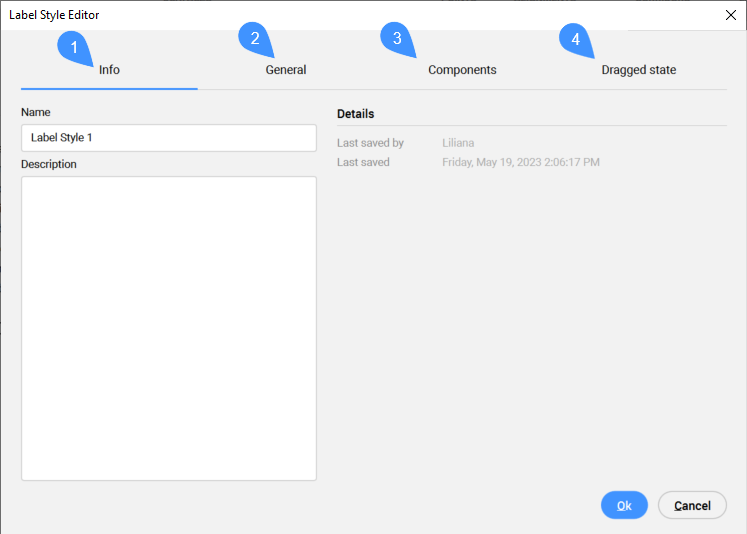
- Info tab
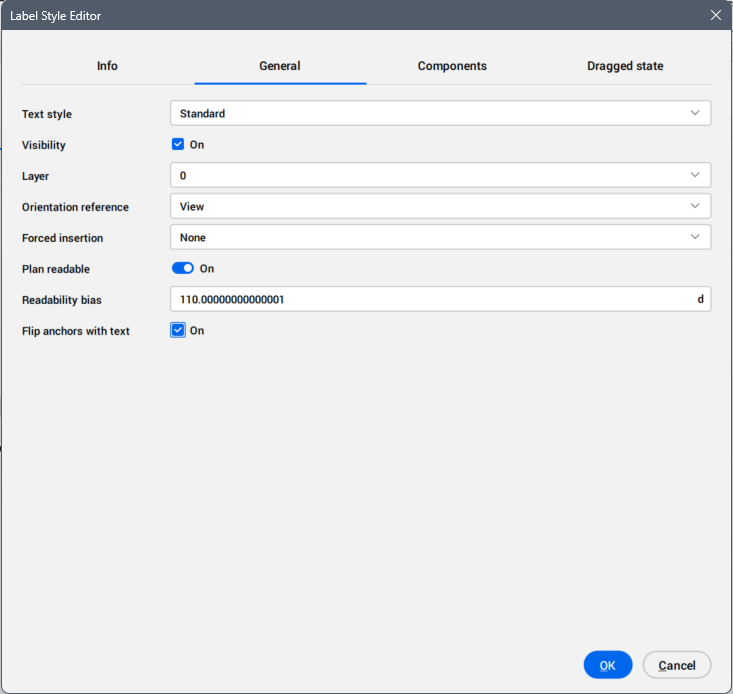
- General tab
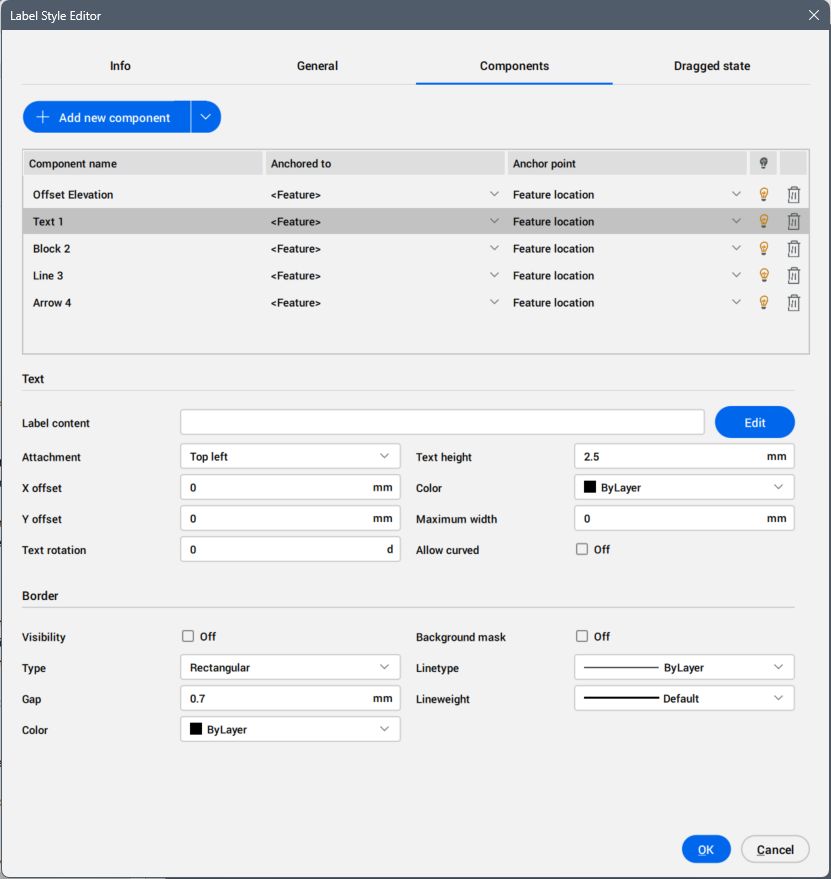
- Components tab
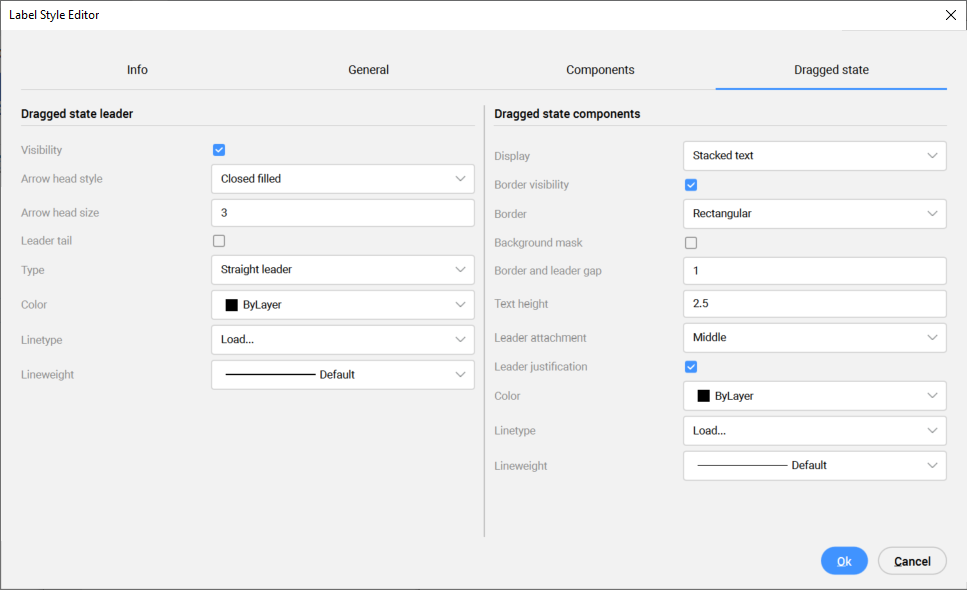
- Dragged state tab
Info tab
Displays information about the label style.
- Name
- Sets and displays the label style name.
- Description
- Sets and display the description of the label style.
- Details
- Displays Last saved by and Last saved dates.
General tab
Defines general label settings.
- Text style
- Sets the text style from the drop-down list.
Note: Use the Drawing Explorer to manage text styles.
- Visibility
- Turns the label visibility in the drawing on or off.
- Layer
- Sets the Layer for the label from the drop-down list.
Note: Use the Layers panel to manage layers.
- Orientation reference
- Sets the orientation reference of labels relative to the associated Object, the screen View orientation, or the World Coordinate System (WCS) from the drop-down list.
- Forced insertion
- Specifies the position of a label relative to an object:
- None: Maintains label position oriented relative to the object.
- Top: Modifies label position to be above an object.
- Bottom: Modifies label position to be below an object.
- Plan readable
- Turns the readability flip parameter on or off.
- Readability bias
- Sets the angle above which the point label text is rotated to a readable angle.
- Flip anchors with text
- Turns the use of flip anchors with the text for the label on or off.
Components tab
Adds and manages Label Style components.
- Add new component
- Allows you to add new components from the drop-down list, Text, Block, Line and Arrow, which define the Label Style.
- List of components
- Lists the added components of the Label Style.
- Component name
- Displays the components names.
- Anchored to
- Defines the dependence between Label Style components by choosing it from the drop-down list.
- Anchor point
- Defines the anchor point of the dependent component by choosing it from the drop-down list.
- Visible
- Turns the visibility of the component on or off.
- Remove
- Removes the component.
- Components properties
- Displays the properties of the component, which can be edited.
-
Text or data component properties
- Text
-
- Label content
- Displays text content of the Label Style. To add, edit or remove attributes displayed in the label, click the Edit button to open the Text Content Editor dialog box.
Note: The process of displaying a user-defined attribute on selected Civil points in a drawing is described in the article Creating user-defined attributes for Civil points. It is also possible to use properties from another object (Surface, Horizontal Alignment and Vertical Alignment).
- Attachment
- Sets the position of text components relative to the point. Attachment can be set to Top left, Top middle, Top right, Middle left, Middle center, Middle right, Bottom left, Bottom center or Bottom right.
Note: Settings Middle left means that the text is positioned so that the symbol is middle-left of the text.
- X offset
- Specifies the offset of the data or text component from the symbol in the X direction.
- Y offset
- Specifies the offset of the data or text component from the symbol in the Y direction.
- Text rotation
- Sets the rotation angle of data or text components presented in the label. The default rotation angle is 0.
- Text height
- Sets the height of data or text components presented in the label.
- Color
- Sets the color of data or text component.
- Maximum width
- Defines the maximum width of data or text component. The maximum width defines the width of border (if gap is set to 0) and can be seen when using background mask.
- Allow curved
- Defines whether the text is curved.
- Border
-
- Visibility
- Turns the border visibility of the label on or off.
- Type
- Defines the border shape of the label. The border can be set to Rectangular, Rounded Rectangular or Circular type.
- Gap
- Specifies the gap between the text and the border line.
- Color
- Defines color the border line.
- Background mask
- Turns the display of a white background on or off.
- Linetype
- Defines the linetype of the border line.
- Lineweight
- Defines the lineweight of the border line.
-
Block component properties
- Block
-
- Block name
- Option to select a block from a list of available blocks in the drawing.
- Block height
- Sets the height of block component in the drawing.
- Color
- Defines color the block component.
- Linetype
- Defines the linetype of the block.
- Lineweight
- Defines the lineweight of the block.
- Attachment
- Sets the attachment point of the block component in the label. The attachment point can be set to Top left, Top middle, Top right, Middle left, Middle center, Middle right, Bottom left, Bottom center, Bottom right or Insertion Point.
Note: The Middle left setting means that the text is positioned so that the symbol is middle-left of the text.
- X offset
- Specifies the offset of the block component from the insertion point in the X direction.
- Y offset
- Specifies the offset of the block component from the insertion point in the Y direction.
- Rotation angle
- Sets the rotation angle of the block component presented in the label. The default rotation angle is 0.
-
Line component properties
- Line
-
- Use end point anchor
- Turns the use of a connection between the line and the anchor point on or off.
-
- End point anchor component
- If Use end point anchor is selected, it is possible to select End point anchor component.
The anchor component is the item that the line is positioned relative to. End point anchor component can be set to <Feature> or Data. When the end point anchor component is set to <Feature>, the line is attached to the label component’s attachment point. When it is set to Data, it can be one of several locations on the label component (defined in End point anchor point).
-
- End point anchor point
- End point anchor point can be defined only when End point anchor component is set to Data. End point anchor point can be set to Top left, Top center, Top right, Middle left, Middle center, Middle right, Bottom left, Bottom center or Bottom right.
-
- Length type
- The Line length type can set to either fixed length (defined in Fixed length) or a percentage (defined in Percentage length).
-
- Fixed length
- When the Length type is set to Fixed length, the total line length can be defined.
-
- Percentage length
- When the Length type is set to Percentage length, the total line length can be defined.
-
- Rotation angle
- When Use end point anchor is deselected, the rotation angle of the line component can be set. The default rotation angle is 0.
-
- Start point X offset
- Specifies the offset of line’s start point in the X direction.
-
- Start point Y offset
- Specifies the offset of line’s start point in the Y direction.
-
- End point X offset
- When Use end point anchor is selected, the line’s end point offset can be defined. End point X offset specifies the offset of line’s end point in the X direction.
-
- End point Y offset
- When Use end point anchor is selected, the line’s end point offset can be defined. End point Y offset specifies the offset of line’s end point in the Y direction.
-
- Color
- Defines color the line component.
-
- Linetype
- Defines the linetype of the line.
-
- Lineweight
- Defines the lineweight of the line.
-
Arrow component properties
- Arrow
-
- Arrow head style
- Specifies the arrow head style from the list of options.
-
- Arrow head size
- Defines arrow head size.
-
- Rotation angle
- Sets the rotation angle of the arrow component presented in the label. The default rotation angle is 0.
-
- Fixed length
- Turns the option to set fixed length of the arrow on or off.
-
- Length
- Defines the length of the arrow.
-
- X offset
- Specifies the offset of the midpoint of the arrow from the symbol in the x direction.
-
- Y offset
- Specifies the offset of the arrow component from the symbol in the Y direction.
-
- Color
- Defines color the arrow component.
-
- Linetype
- Defines the linetype of the arrow.
-
- Lineweight
- Defines the lineweight of the arrow.
Dragged state tab
Defines leader style and components style in dragged state.
- Dragged state leader
- Displays leader style properties in dragged state which can be edited.
- Visibility
- Turns the leader visibility in the drawing on or off.
- Arrow head style
- Defines arrow head style by selecting it from the drop-down list.
- Arrow head size
- Defines arrow head size.
- Leader tail
- Turns the use of leader tail in the drawing on or off.
Note: When the leader tail is turned on, its length is equal to the arrow head size.
- Type
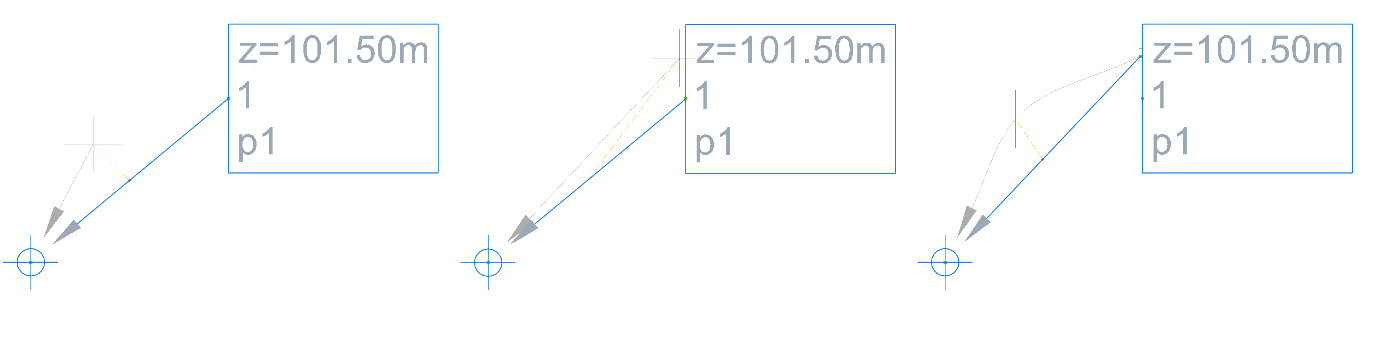
- Sets the leader type as straight line or spline. To edit spline curve, drag the “+” sign from the middle of the leader to a desired position.
Note: Selecting and dragging the '+' sections of the leader will create curves, while selecting '-' will remove sections of the spline curve.
- Color
- Specifies the color of leader in dragged state.
- Linetype
- Defines linetype of leader in dragged state.
- Lineweight
- Defines lineweight of leader in dragged state.
- Dragged state Components
- Displays components properties style in dragged state which can be edited.
- Display
- Displays components in dragged state as:
- Stacked text: means that their style will be defined under the Dragged State tab.
- As composed: means that the style is the same as it is defined under the Components tab, in the Text Content Editor dialog box.
Note: If you want the label style to be different in dragged state, select Stacked text option and define the rest of its properties under the Dragged State tab.
- Border visibility
- Turns the border visibility in dragged state on or off.
- Border
- Defines border shape in dragged state as: rectangular, rounded rectangular or circular.
- Background mask
- Turns the use of background mask of components in dragged state on or off.
- Border and leader gap
- Defines border and leader gap in dragged state.
- Text height
- Defines text height in dragged state.
- Leader attachment
- Specifies the position of the leader attachment point, picked from the drop-down list.
- Leader justification
- Turns the leader justification on or off. Text components change its justification with the movement of the leader.
- Color
- Specifies the color of components in dragged state.
- Linetype
- Defines the linetype of components border in dragged state.
- Lineweight
- Defines the lineweight of components border in dragged state.
Note: All the changes are dynamically displayed in the drawing.